Adopting a CAD Collaboration Platform: A Practical Plan

CAD data rarely lives where it should. For some teams it's scattered across shared drives; for others it sits in an aging PDM system that no longer fits the way they work. Either way, moving that data into a controlled document management environment is where years of accumulated file issues finally surface. This is the playbook we use at Sibe to get teams through it: what to set up, what to clean, and in which order.
Project Overview and Goals
The objective is simple: one controlled source of truth for all CAD data. No file loss, no model overwriting, no "last person who saved wins." Once migrated, your team gets version control, change traceability, and a workspace built for collaboration.
Business and Technical Requirements
- Source of truth: a Collaboration-first CAD Document Management environment manages file relationships and histories.
- CAD Document creation: a CAD Document is created for every single file, so everything is tracked in Sibe.
- Unique identifiers: filenames must be unique per workspace to maintain integrity.
- Project structure: folder structures (Engineering, Standard Library, Released, Obsolete) are configured upfront to maintain SolidWorks references.
The Six Migration Phases
Phase 1: Discovery & Assessment
Analyze existing folder hierarchies, duplicate files, and CAD data types (.sldprt, .sldasm, .slddrw). Broken references are fixed automatically within Sibe.
Phase 2: Target Model Design
Define the vault folder structure and set the file lifecycle states: In Process, Under Review, and Released.
Phase 3: Data Preparation
The critical phase. Remove duplicates and normalize file naming conventions. Roughly 20–30% of legacy data typically turns out to be obsolete — exclude it from the migration.
Phase 4: Document Management Deployment
Account creation, add-in installation, and user invites.
Phase 5: Data Migration
- Pilot migration: validate 50–100 files to test the process.
- Full migration: use both local import and web import with Sibe.
- Validation: run Sibe's Missing References tool to automatically fix any broken references.
Phase 6: Training and Go-Live
Legacy folders switch to read-only. All new work happens exclusively in the Collaboration-first Document Management environment.
Technical Strategy During the Transition
Users select which files or folders map to specific projects in Sibe. To prevent data loss during the transition, deleting, renaming, or moving assets is restricted in the Web UI and the add-in until the migration is finalized.
The Duplicate Filename Trap
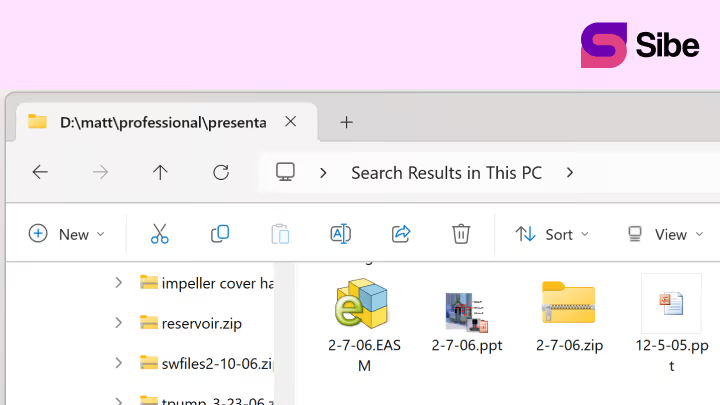
In a standard Windows file system, duplicates happen by accident — parts copied into different folders, "draft" files renamed, no single source of truth. In a document management system, those duplicates don't disappear; they collide.
If "Bracket.sldprt" lives in three folders, the system allows only one. SolidWorks relies on filename uniqueness to trace its reference tree — multiple parts with the same name break your assembly, or worse, put the wrong revision of a component into manufacturing.
The Silver Lining: A Fresh Start
Migration is the right moment to reorganize. Unlike Windows Explorer, which forces you to rely on folder hierarchy, a document management system lets you search by metadata, part numbers, and custom properties.
Don't lift and shift everything as-is into the new vault. Use this time to:
- Establish a naming convention — define strict naming rules.
- Identify obsolete data — statistically, 20–30% of legacy files are irrelevant. Archive them; don't migrate them.
- Fix broken references — use Sibe during implementation to automatically repair links between assemblies, drawings, and parts.
How to Find Your Duplicates (PowerShell)
Before you migrate, measure the noise. This script identifies duplicate filenames across your current directory structure so you can address them before import.
# Run this script in the root directory you want to analyze
$rootPath = Get-Location
# Find all files, group them by name, and identify those with more than one occurrence
$duplicates = Get-ChildItem -Path $rootPath -Recurse -File |
               Group-Object Name |
               Where-Object { $_.Count -gt 1 }
if ($duplicates) {
    Write-Host "Found duplicate filenames:" -ForegroundColor Yellow
    foreach ($dup in $duplicates) {
        Write-Host "Filename: $($dup.Name) (Found $($dup.Count) times)"
        $dup.Group | ForEach-Object { Write-Host "  -> Path: $($_.FullName)" }
    }
} else {
    Write-Host "No duplicate filenames found." -ForegroundColor Green
}
How to Find Your Duplicates (Batch)
@echo off
:: EDIT THE PATH BELOW TO YOUR STAGING FOLDER
set "search_path=C:\Path Temp"
set "output_file=%userprofile%\Desktop\Sibe_Duplicate_Check.txt"

echo Scanning for Sibe filename conflicts...
echo Folder: %search_path%

powershell -Command "$results = Get-ChildItem -Path '%search_path%' -Recurse -File | Group-Object Name | Where-Object { $_.Count -gt 1 }; if ($results) { $results | ForEach-Object { $name = $_.Name; echo '--- CONFLICT: ' $name ' ---'; $_.Group | Select-Object -ExpandProperty FullName; echo '' } | Out-File -FilePath '%output_file%' -Width 512 } else { 'No duplicate filenames found. Ready for Sibe upload!' | Out-File -FilePath '%output_file%' }"

echo Scan complete. Check your desktop for Sibe_Duplicate_Check.txt
pause
Conclusion
Migrating to a document management system is more than a software installation — it's an organizational reset. Removing duplicates, standardizing names, and archiving obsolete files doesn't just move your data; it sets your engineering team up for long-term efficiency.
Don't treat the migration as a copy-paste exercise. Treat it as the audit that makes your move to a modern Collaboration-first Document Management system smoother and more successful.
Migrating is easier when the destination sets up in under 20 minutes. Sibe gives SolidWorks teams version control, revision workflows, and browser-based design reviews — no servers, no VPNs, no admin hassles. Book a free 20-minute demo or try Sibe free for 14 days — no credit card.
Book a free Demo with Ken to see Sibe in action


Ken Maren
Chief Solutions Architect
SolidWorks Expert with 30+ Years Experience
Redirecting...
Demo bookings need a company email address. To use a personal one, choose Try Sibe for free below.