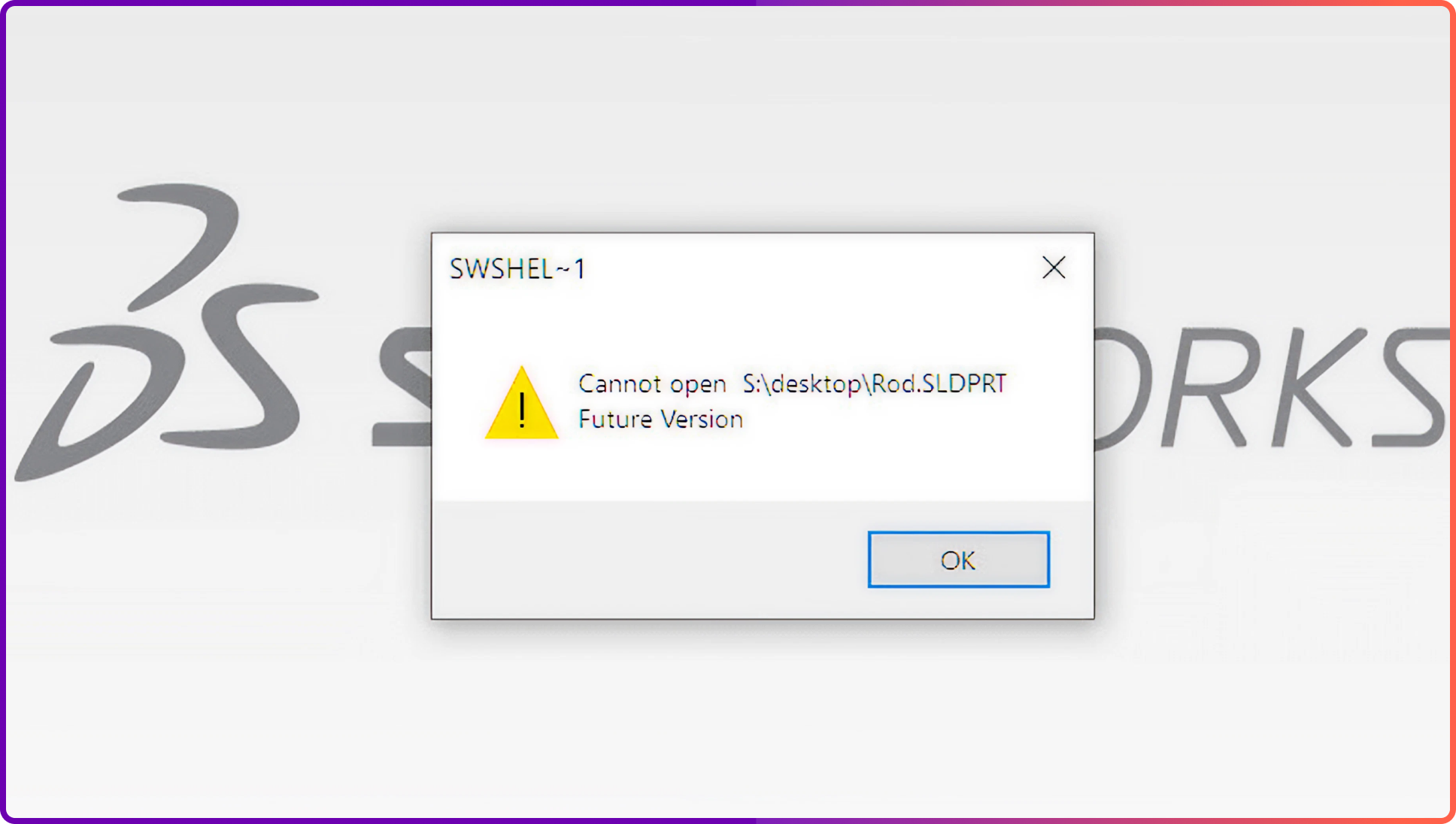
How to Convert a Future Version of a SolidWorks File

A SolidWorks file saved in a newer release will not open in your seat — here are the four routes to usable geometry, and the habit that stops it happening again.
You can get usable geometry out of a SolidWorks file that was saved in a newer release than the one you run. What you cannot do is open it natively, and no amount of renaming or "converter" software changes that. This is a guide to the routes that actually work, the ones that waste an afternoon, and how to stop the problem reaching your desk again.
Sibe is a collaboration-first CAD Document Management platform with a native add-in for SOLIDWORKS® 3D CAD. Every check-in writes a new version with the author and a timestamp, so when a file comes back from a newer release than your team runs, you can open the last version your seats can read instead of chasing a converted copy around by email.
What the "Future Version" message actually means
SolidWorks writes files forward, not backward. A part, assembly or drawing saved in 2024 carries a file format that a 2022 seat does not know how to read, so 2022 refuses to open it rather than guess. The message names the release the file came from, which is the single most useful piece of information on the screen — note it before you close the dialog.
Four consequences follow, and most of them surprise people:
- Opening a newer file in an older seat is not possible, in any release
- Saving a newer file back down to an older release is not possible either — there is no "Save As 2022"
- Once a file is opened and saved in a newer release, the old seats lose it permanently
- Service pack level does not matter; the major release year is what decides compatibility
That third point is the one that bites teams. An engineer on a newer install opens a shared assembly "just to look", saves out of habit, and every colleague on the older release is locked out of a file they were working on that morning.
Option 1: ask for a neutral format
This is the fastest and most reliable route. Ask whoever sent the file to export it in a format your release reads. The common choices:
- STEP (.step, .stp) — best all-round choice; carries solid geometry, assembly structure and units
- Parasolid (.x_t, .x_b) — native kernel format, so solids come across cleanly with very few repair issues
- IGES (.iges, .igs) — surfaces rather than solids; useful for surfacing work, more prone to gaps
- 3D PDF or a mesh format — fine for looking and measuring, not for modeling
All of these drop the feature tree. You get the shape, not the design intent — no sketches, no fillet features, no configurations, no parametric relations. For a component you only need to reference, mate or check clearance against, that loss costs you nothing. For a part you have to modify, read on.
When you ask, ask precisely: name the format, name your release, and say whether you need the assembly structure preserved. "Can you send a STEP AP242 with the subassembly structure intact?" gets a usable file first time far more often than "can you send something I can open".
Option 2: rebuild features with FeatureWorks
If you have a neutral file and you need to edit it parametrically, FeatureWorks can recognize some of the original geometry as features again.
- Open the neutral file in SolidWorks as a part
- Go to Insert > FeatureWorks > Recognize Features
- Choose automatic recognition for a first pass, then interactive recognition for what it missed
- Work through holes, bosses, fillets and extrudes; rebuild and check the tree
Recognition works best on prismatic machined parts with clear extrudes, holes and simple fillets. It struggles with organic surfacing, lofts, thin-wall plastic parts and anything with heavy variable-radius blending. Treat it as a head start on a rebuild, not a conversion — if the recognized tree comes back messy, deleting it and remodeling from the imported solid is often faster than fighting it.
Option 3: work on the imported body directly
You do not always need a feature tree. SolidWorks direct editing tools operate on imported geometry as it is:
- Move Face — shift, offset or rotate a face to change a dimension
- Delete Face — remove a boss or a hole and heal the surrounding surfaces
- Delete Hole — clear hole patterns you are going to replace
- Combine and Split — cut, add or divide bodies without any history
For a one-off change to a supplied component — moving a mounting hole, thickening a flange — this beats a full rebuild comfortably.
Option 4: get the file back at the release you run
If the sender is a client, a supplier or a colleague on the same team, the cleanest answer is usually social rather than technical. Ask whether an earlier version of the file exists, from before the newer release touched it. Where the sending team keeps version history, that earlier version is a few clicks away and comes back with the full feature tree intact — which no neutral export can give you.
This is also why a team that tracks versions rarely loses much to this problem. Every check-in is a restore point. When a file gets saved forward by mistake, you open the version from before that save rather than reverse-engineering a STEP file.
What does not work
Save yourself the search:
- Renaming the extension or editing the file header — the format differences are real, not cosmetic
- Third-party "SolidWorks downgrade converters" — they export neutral geometry at best, and put your IP on someone else's server at worst
- Opening the file read-only in your release — the format check happens before that
- Asking the sender to "just save as an older version" — SolidWorks has no such option
How to stop it happening again
The fix is a team agreement, not a tool:
- Put every seat on the same major release, and upgrade everyone in one window
- Agree a release baseline with clients and suppliers at the start of a project, in writing
- Record the release in a custom property on the file, so it travels with the model
- Keep a version history, so a file saved forward by accident can be pulled back
- Send neutral exports to anyone outside the baseline instead of native files
The last one is worth pushing. Most people who ask for a native SolidWorks file only want to look at the model, measure a feature or check a clearance. A browser link or a STEP export answers that without putting your editable geometry into a release you do not control.
Where Sibe fits
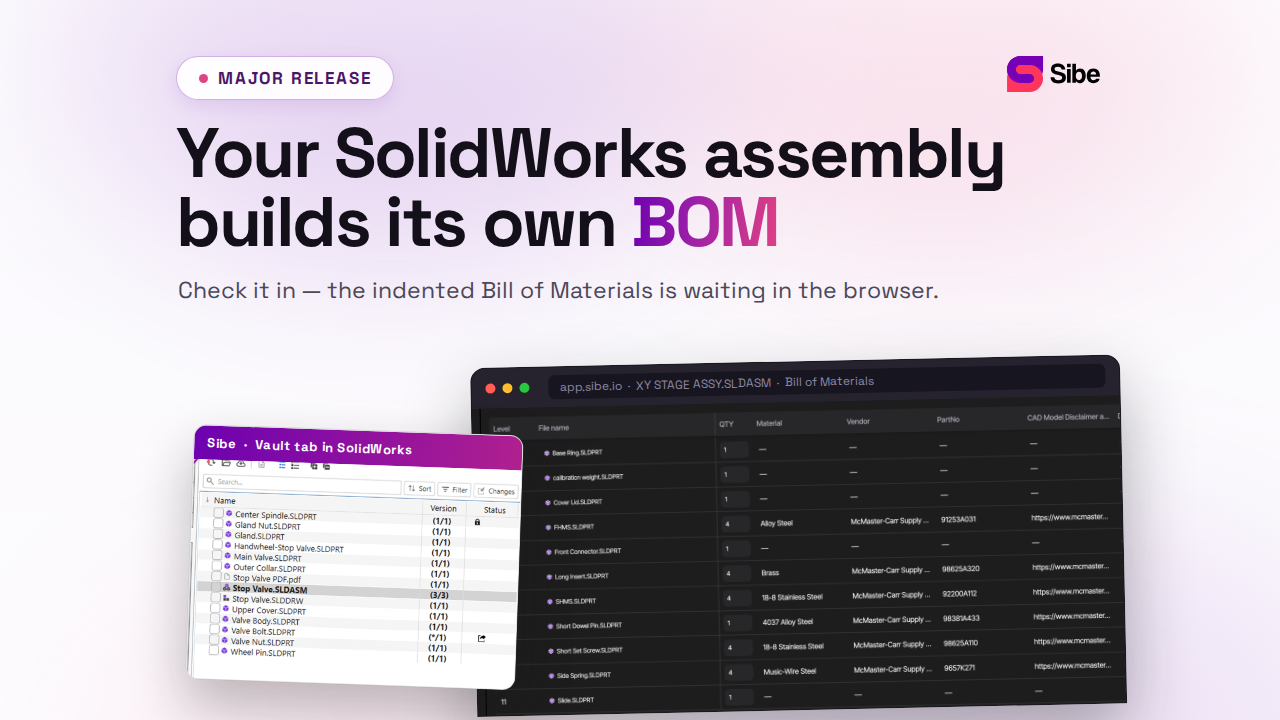
Sibe is a collaboration-first CAD Document Management platform with a native SolidWorks add-in. Engineers check files in and out directly in SolidWorks, and Sibe writes a new version on every check-in with the author, a timestamp and the change note. When a file has been saved forward into a release your seats cannot open, you view and restore the previous version instead of rebuilding from a neutral export. Assembly references resolve automatically, so restoring one part does not break the assembly around it.
For the people who only need to look — a client on a different release, a supplier, a colleague in production — a free public share link or a QR code opens the model in any browser. No Sibe account, no viewer install, no release compatibility to negotiate. You can read more on version control for SolidWorks and secure design sharing.
No servers, no VPNs, no admin hassles.
Book a free 20-minute demo or try Sibe free for 14 days — no credit card.
Book a free Demo with Ken to see Sibe in action


Ken Maren
Chief Solutions Architect
SolidWorks Expert with 30+ Years Experience
Redirecting...
Demo bookings need a company email address. To use a personal one, choose Try Sibe for free below.
.png)