Copy SolidWorks Assemblies With Drawings: Sibe July 2026 Update

You can now copy an entire SolidWorks assembly, parts, drawings, and references, in a few clicks. And when you've edited a set of files, you can check them all back into the vault in one operation, directly in SolidWorks.
🎥 Prefer to watch? Ken walks through the whole update in 6 minutes.
That's the July 2026 Sibe update. The April release taught Sibe how your SolidWorks files connect to each other. This one is about the operations you run on those files every day: copying a design, checking out a set of parts, finding a file in a crowded folder, and getting a batch of edits back into the vault.
Here's what you can do now.
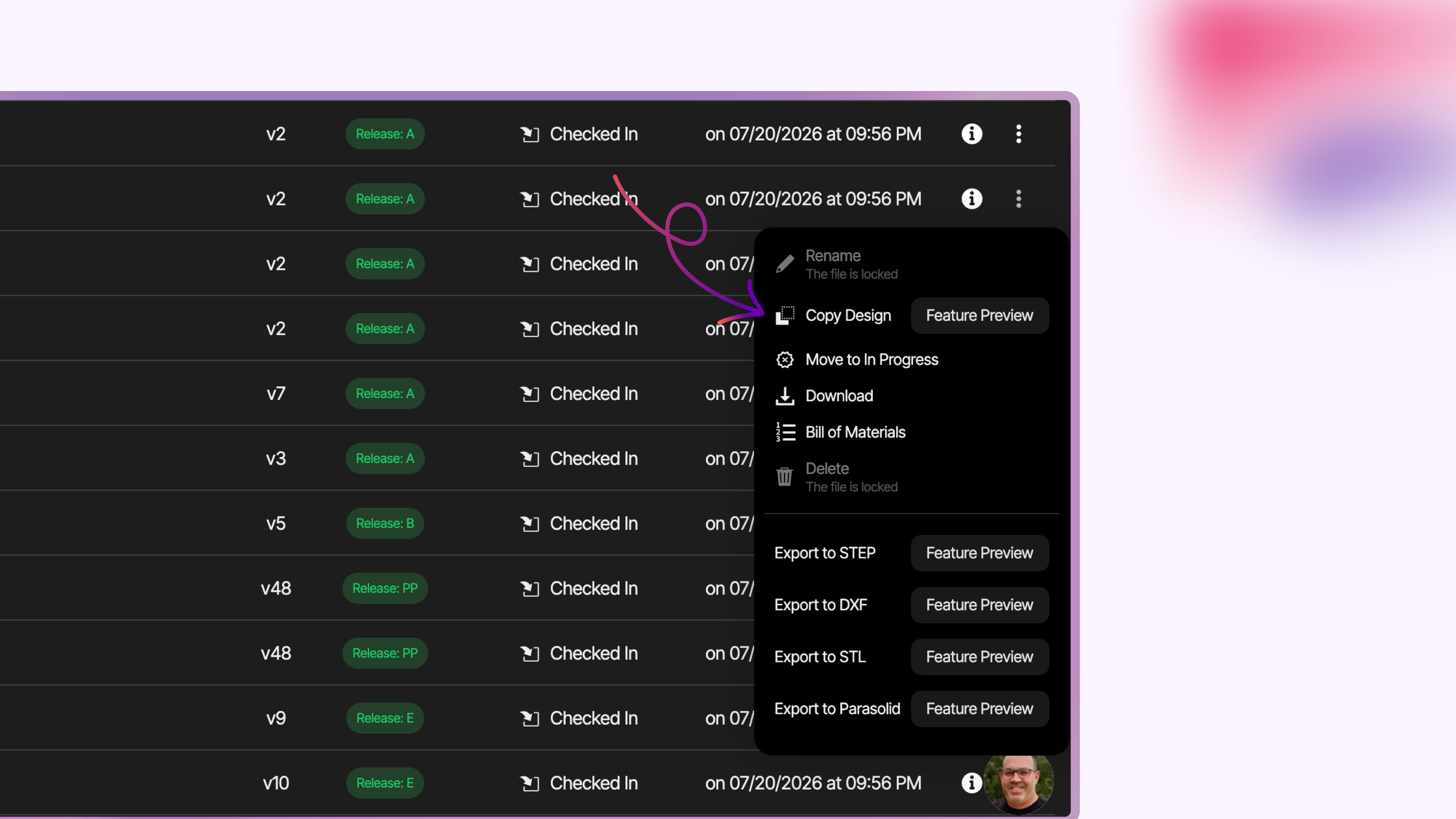
Reuse a design without rebuilding it
Open the folder that holds the files you want to reuse and choose Copy Design. Select the assembly and the parts to bring along, and Sibe creates a new set of files with the references pointing at the new copies, not the originals.
Drawings come with them. If a part or assembly you copy has an associated drawing, Sibe copies the drawing too and points it at the new file. Open the new assembly, check the References panel, and you'll see the new parts. No manual renaming, no repairing references afterward. That is the same reference handling in Sibe that keeps assemblies working when files move or get renamed.
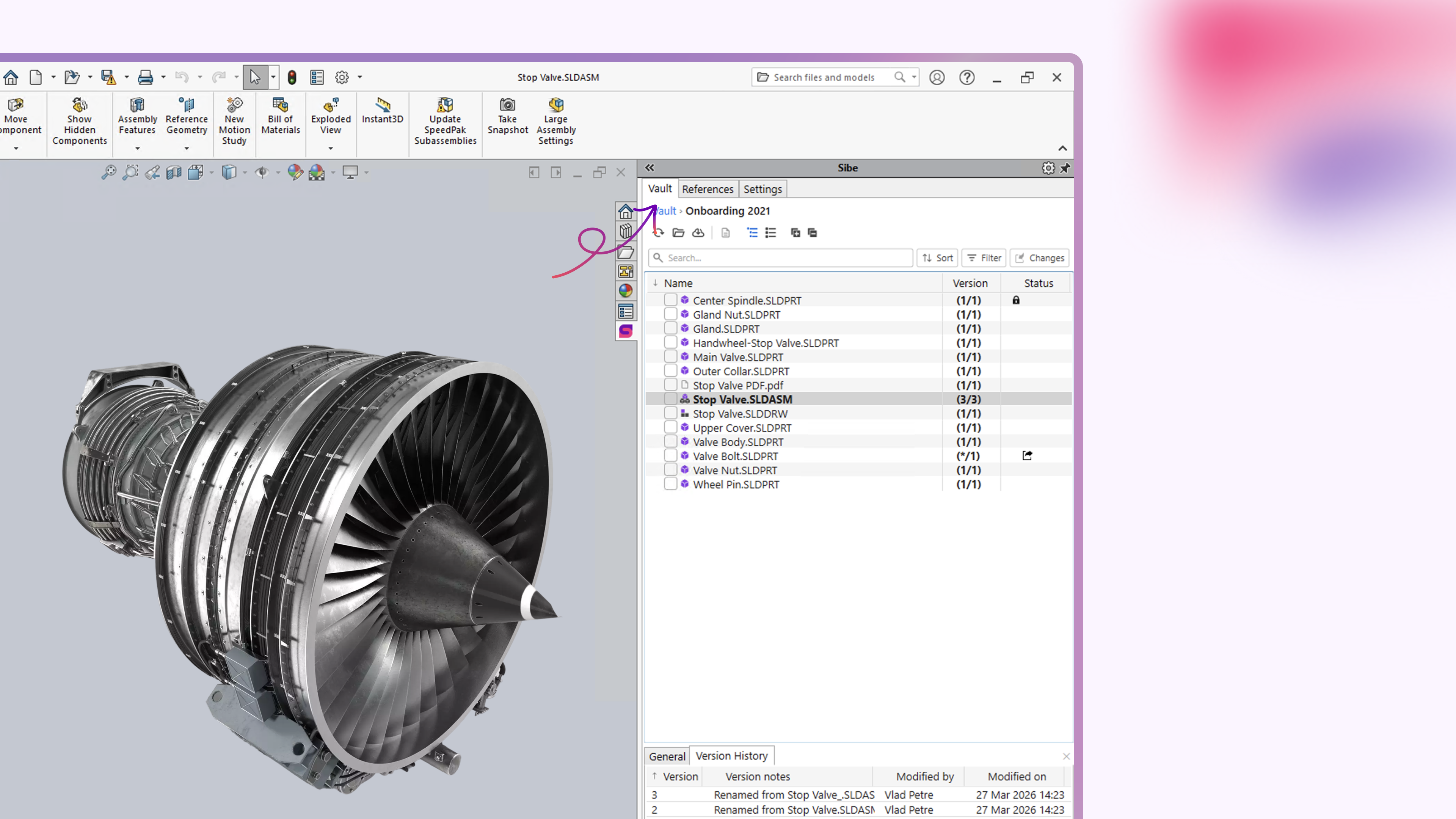
Work from one Vault tab
The Changes tab is gone, everything in the add-in now happens in the Vault tab. Your top-level folders are listed for faster navigation, and the caching controls (auto cache, clear cache, open the local vault folder, cache files) moved out of Settings and into the Vault tab, where the work is. Fewer places to look for the same job.
Find one part in a crowded folder
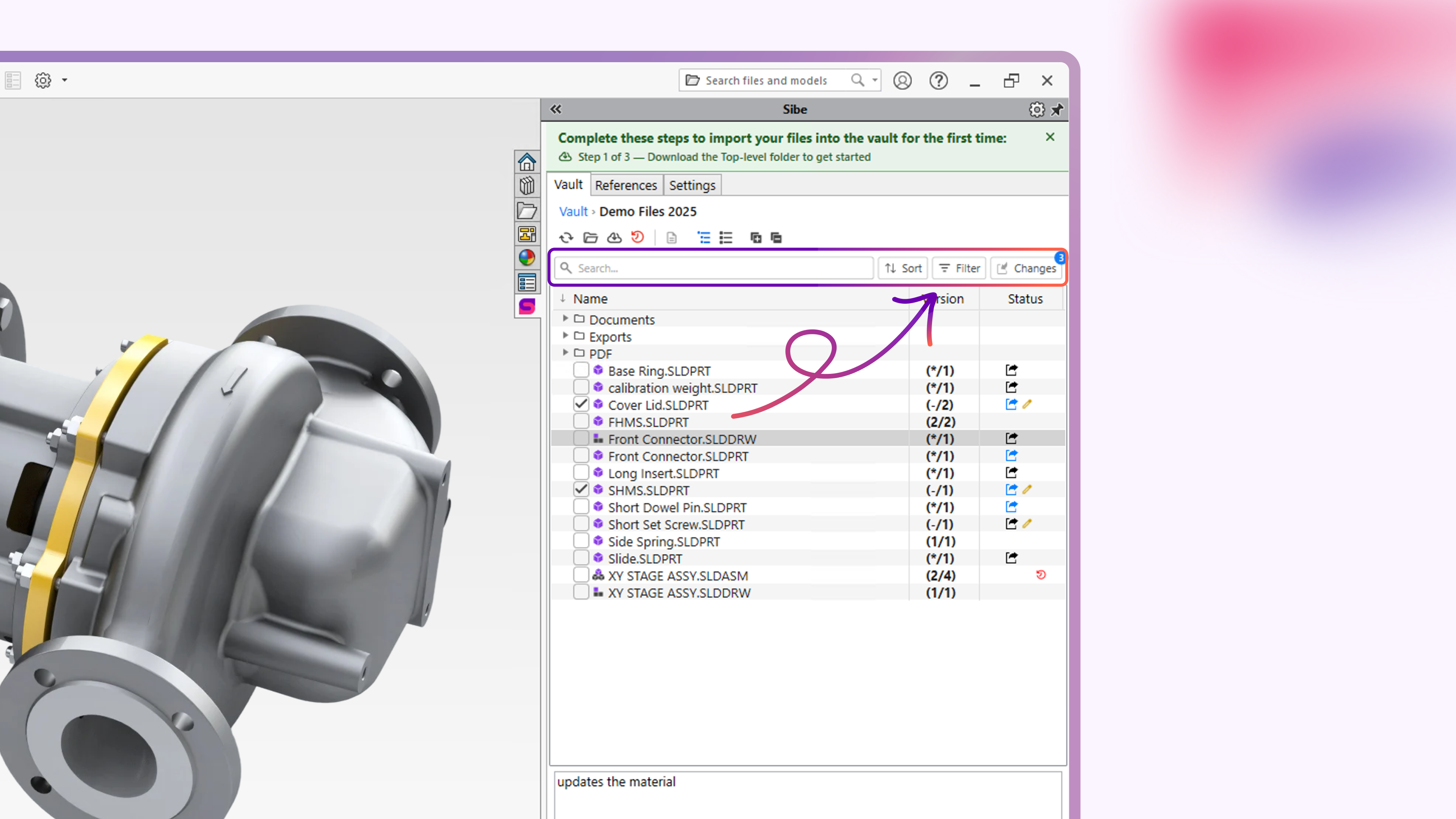
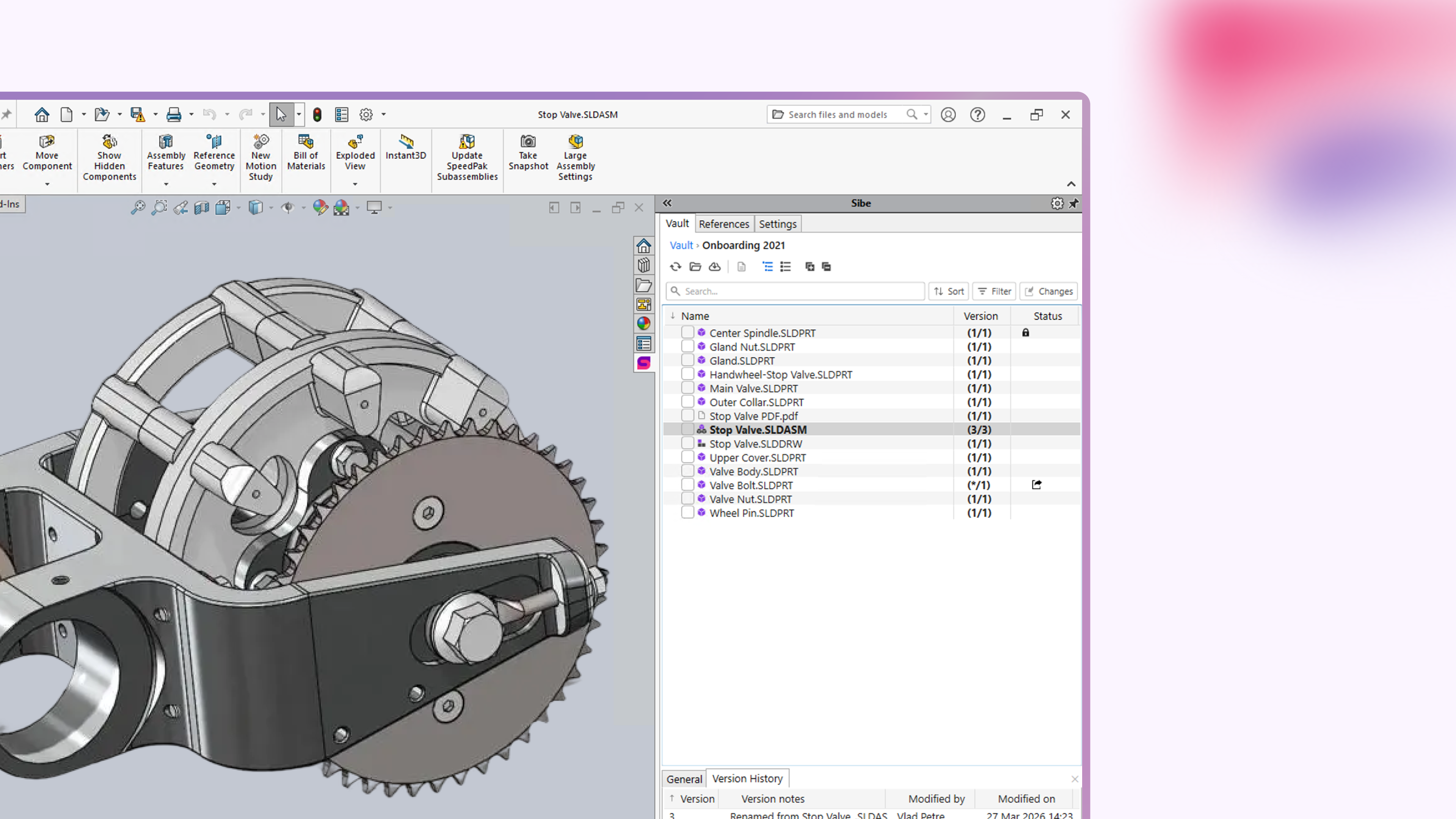
The Vault tab now has the tools for working in a large folder: search by file name, sort by any column, a description column you can toggle, tree and vault views, and filters — SolidWorks files only, files checked out by me, and files with changes.
The changes filter carries a count of the files you've edited. Click it, and the list narrows to exactly those files, ready to check in as a set.
Check in a batch, not a file at a time
Select the files you want and check out, check in, lock, or unlock the whole set at once — without leaving SolidWorks. The same operations sit on the right-click menu, along with check everything and uncheck everything.
A typical edit now runs start to finish like this: check out the files you need, change the material, save the part, update the drawing, take your revision, save the assembly, add your notes — then click the changes filter, select all, and check in. Three files go back into the vault in one operation.
Get our support team in your workspace, free
Add support@sibe.io as a user in your workspace and that seat is excluded from billing. If you want us to look at something in your vault alongside you, add the account and we'll join and take a look — at no charge.

You'll feel the speed
Opening folders, caching, and checking work in and out are all quicker. We've continued the architecture work behind Sibe, and this release ships the result. We held these improvements until existing customers had moved onto recent add-in versions — that's done, so they're live for everyone.
Get the update
Update to the latest version of the Sibe add-in and everything above is yours, it takes a couple of minutes. The full step-by-step guide is in our help center, and the release walkthrough is on our YouTube channel.
New to Sibe? It's cost-effective, collaboration-first CAD Document Management with a native SolidWorks add-in, live in under 20 minutes. Book a free 20-minute demo and we'll show you how it fits your current setup.
No servers, no VPNs, no admin hassles.
Book a free Demo with Ken to see Sibe in action


Ken Maren
Chief Solutions Architect
SolidWorks Expert with 30+ Years Experience
Redirecting...