How to Open and Use Document Properties in SolidWorks

Document properties set the units and standards inside each SolidWorks file, custom properties carry the data your team searches by — here is how to open both, set them once in a template, and keep every seat consistent.
You can open a new part and have the units, drafting standard, dimension precision, and annotation fonts already correct — set once, applied to every file made from that template. That is what document properties in SOLIDWORKS® 3D CAD are for, and they sit two clicks away under Tools > Options. This guide shows where they live, which settings matter first, how they differ from custom properties, and how to lock all of it into templates so every file your team creates starts out right.
Sibe is a cloud CAD document management platform with a native SolidWorks add-in. It reads the custom properties you set up this way and lets you search and filter by them in the add-in and the dashboard — so a part number or material typed once stays findable for the whole team.
Document properties, system options, and custom properties
SolidWorks keeps several kinds of settings, and mixing them up costs time:
- System options apply to your whole SolidWorks installation — every file, every session. They live under Tools > Options > System Options
- Document properties are stored in the open file itself: units, drafting standard, dimension styles, image quality. Anyone who opens that file gets the same document properties
- Custom properties are data about the part — part number, description, material, revision — stored in the file and read by drawings, BOM tables, and file management tools
- Configuration-specific properties are custom properties scoped to a single configuration, for files that carry several variants of one part
How to open Document Properties in SolidWorks
- Open the part, assembly, or drawing you want to modify
- Click Tools in the top menu
- Select Options from the drop-down
- Click the second tab, labeled Document Properties
The categories on the left cover drafting standard, annotations, dimensions, tables, units, model display, and image quality — plus sheet metal defaults in sheet metal parts. Everything you set here is saved in the document, and in any template you make from it.
The settings worth adjusting first
- Units: pick MMGS, IPS, or a custom unit system, and set decimal places for length and mass
- Drafting standard: ISO, ANSI, DIN, JIS, GOST, or a company variant you save and reuse
- Dimensions: precision, arrow styles, font sizes, and tolerance display
- Annotations: note fonts, leader lines, and balloon display
- Image quality: shaded and wireframe resolution — worth lowering on large assemblies
Custom properties: the data your team searches by
Document properties control how a file looks and measures. Custom properties describe what the part is — and they live in a different dialog: File > Properties opens the Summary Information window with three tabs — Summary, Custom, and Configuration Specific.
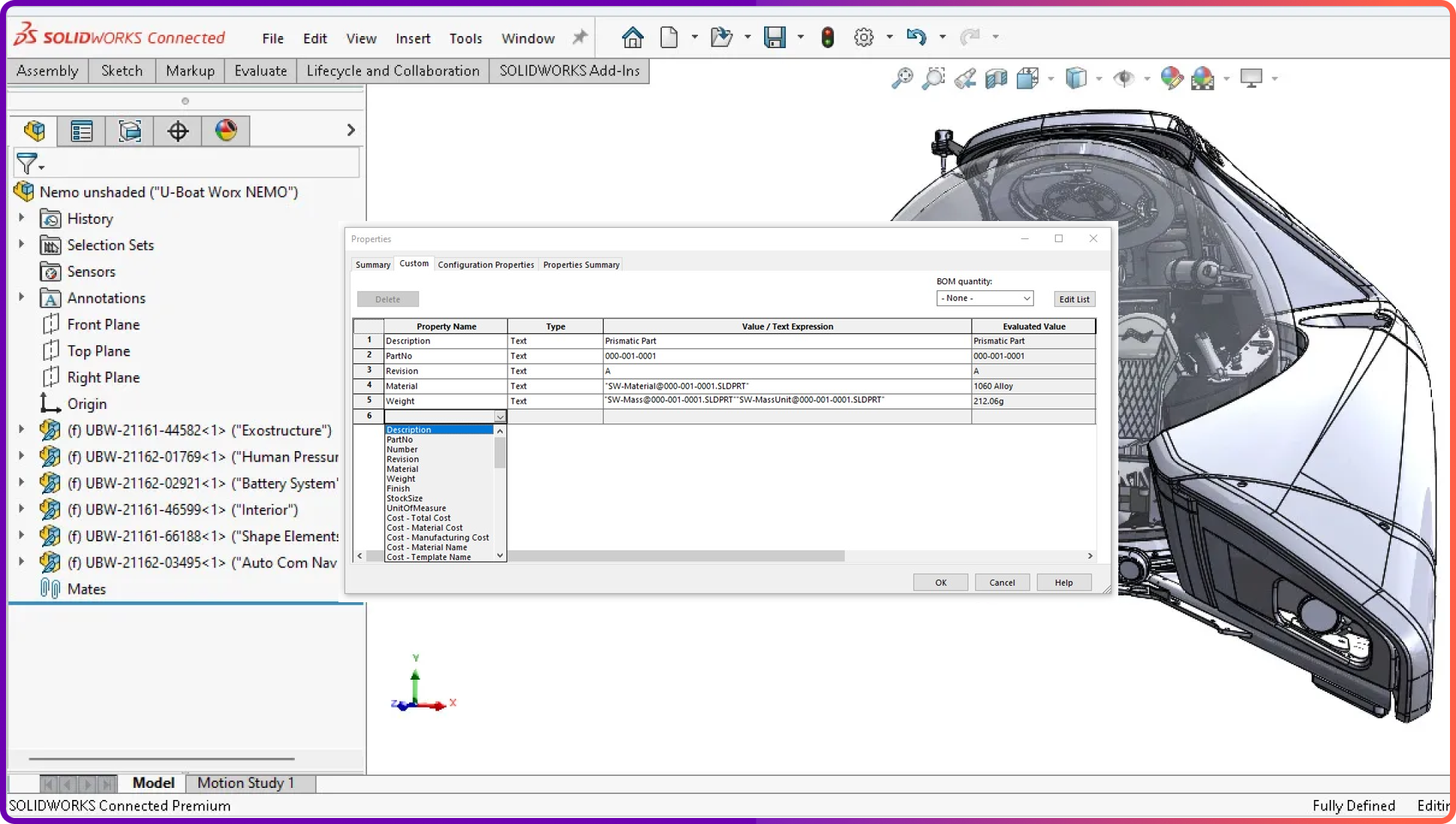
On the Custom tab, add a property name, pick a type, and enter a value. Typical entries for a manufacturing team:
- Part number and description — the identity every drawing and BOM pulls
- Material — link it to the applied material so it updates when the model does
- Mass — link it to the model's mass properties for a value that recalculates on rebuild
- Revision, vendor, project, finish — whatever your downstream documents need
Linked values are the point. A title block note reading $PRPSHEET:"Material" fills itself from the model and stays right when the material is edited. Type the value by hand instead, and the drawing goes stale the first time someone revises the part.
If your team fills the same properties on every part, build a Property Tab Builder template. It puts a fill-in pane in the Task Pane with drop-downs and checkboxes, so properties get entered the same way on every file — no retyping, no spelling drift between "Stainless 304" and "SS304".
Configuration-specific properties
One SolidWorks file often carries several sizes of the same part as configurations. The Configuration Specific tab scopes a property to one configuration: a bracket file with 2 mm and 3 mm versions holds a distinct part number and description for each, and drawings and BOM tables pull the value from the configuration they reference. A house rule worth adopting: anything that varies by configuration — part number, description, mass — goes on the Configuration Specific tab; anything true of the whole file — author, project, vendor — stays on the Custom tab.
Save it all as a template
- Set up document properties and the custom properties you want pre-loaded
- Click File > Save As
- Change the file type to Part Template (*.prtdot), Assembly Template (*.asmdot), or Drawing Template (*.drwdot)
- Save it to your team's template folder, and point every seat at that folder under Tools > Options > System Options > File Locations
New files made from the template inherit the units, the standard, and the property placeholders — the fix that ends "why is this part in inches?" for good.
Keeping a whole team consistent
The settings are the easy part; consistency comes from everyone using the same ones:
- Keep one template set in a shared location, not a copy on each machine
- Agree property names once — "PartNo" and "Part Number" are two different properties to every tool that reads them
- Distribute one Property Tab Builder template so entries come from drop-downs, not memory
- Review templates when your drafting standard evolves, and re-issue them with a version note
Custom properties pay off the day you search by them. Nordair Systems, a German manufacturer of modular cleanrooms, runs its SolidWorks library with article numbers, materials, and ESD classifications carried as custom properties on every file — read the case study.
Where Sibe fits
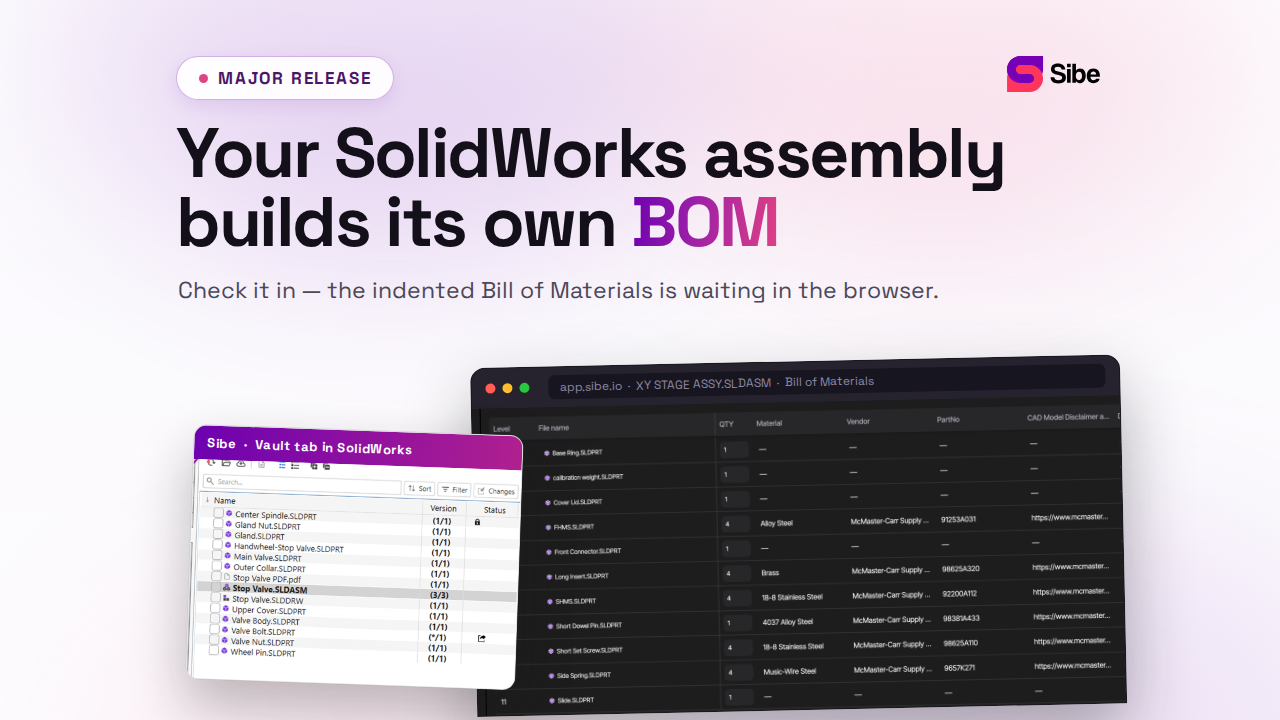
Sibe reads the custom properties on every checked-in file and turns them into search filters: find parts by part number, material, or any property your templates carry, in the add-in and in the web dashboard. Engineers check files in and out directly in SolidWorks while Sibe tracks every version, so properties travel with the file history instead of living in someone's head. See the CAD file management page for how teams set it up. No servers, no VPNs, no admin hassles.
Book a free 20-minute demo or try Sibe free for 14 days — no credit card.
Book a free Demo with Ken to see Sibe in action


Ken Maren
Chief Solutions Architect
SolidWorks Expert with 30+ Years Experience
Redirecting...
Demo bookings need a company email address. To use a personal one, choose Try Sibe for free below.
.png)