SolidWorks PDM Standard vs Professional: How to Choose

What separates the two SOLIDWORKS PDM tiers in practice, which team each one suits, and the questions to settle before you commit to either.
You can settle the SOLIDWORKS® PDM Standard or Professional question with four answers: how many people touch CAD, whether your release process needs states you define yourself, whether files have to reach a second site, and whether anything has to talk to your ERP. Everything else in the tier comparison follows from those.
This guide sets out what each tier covers, who each one suits, what to check before you commit, and the questions worth putting to your reseller.
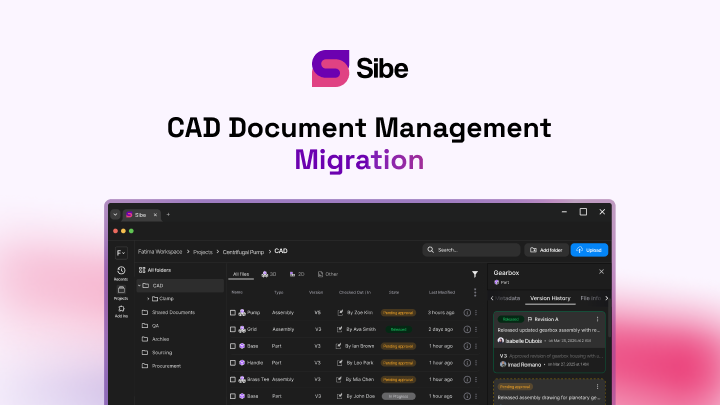
Sibe is a collaboration-first CAD Document Management platform with a native SolidWorks add-in. Engineers check files in and out directly in SolidWorks, Sibe tracks every version, and reviewers open the model through a free public share link in any browser. If your team has no data management in place yet, there is a Sibe-only section at the end of this article covering what that route looks like.
What SOLIDWORKS PDM is
SOLIDWORKS PDM is a product data management system for organizing, controlling, and tracking design data. It keeps the team working from current file versions, secures the data behind permissions, and moves files through a defined release process. It runs against a SQL Server database with a file vault archive, and users work through a vault view in Windows Explorer as well as through the CAD add-in. (Dassault Systèmes product documentation, accessed 31 August 2026.)
It comes in two tiers:
- PDM Standard — an entry-level tier for small teams with a simple release process
- PDM Professional — a tier for larger teams, multiple sites, and processes that need configuring
The two tiers side by side
The capability split between the tiers is the fastest way to see which one your process actually needs.
| Capability | PDM Standard | PDM Professional |
|---|---|---|
| Version control | Yes | Yes |
| CAD add-in integration | Yes | Yes |
| Windows Explorer vault view | Yes | Yes |
| Basic workflows | Yes | Yes |
| Custom workflows | No | Yes |
| Task automation, such as PDF creation on release | No | Yes |
| Multi-site replication | No | Yes |
| Non-CAD file handling | Limited | Full |
| API and custom integrations | No | Yes |
| ERP and MRP integration | No | Yes |
| Advanced search | Limited | Yes |
| Licensing | Included with SOLIDWORKS Professional and Premium | Licensed separately |
(Dassault Systèmes product documentation, accessed 31 August 2026.)
What Standard covers
Standard is the tier most small engineering teams start on, because it arrives with a license they already hold. It gives you the core of data management:
- Check-in and check-out, so two engineers never edit the same part at once
- Automatic version history on every check-in
- A vault view in Windows Explorer alongside the CAD add-in
- A predefined workflow with a small number of states
- User and group permissions on folders and states
Standard has fixed limits that are worth reading before you plan around it. The workflow states are predefined rather than configurable, the number of concurrent users is capped, and it runs on SQL Server Express, which caps the database size. For a team of a handful of engineers on one site with a simple approve-and-release process, none of those usually bite.
What Professional adds
Professional is where configuration opens up. Five additions account for most upgrades.
Workflows you define yourself
Standard gives you a workflow. Professional lets you build one that matches how your company actually releases a drawing — the states, who can move a file between them, what conditions have to be true first, and what happens automatically on transition.
Task automation
Professional runs tasks on the server when a file changes state. The common one is generating a PDF or DXF on release, so manufacturing always gets a production file that matches the released revision without anyone exporting it by hand. Conversion and print tasks work the same way.
Multi-site replication
Where engineers work in more than one location, Professional replicates the file vault archive between sites so each office reads from a local copy. The database stays central. This is the feature that most often decides the tier for a company with two design offices.
Non-CAD files and full search
Professional handles the documents around the design — specifications, test reports, supplier correspondence — with the same version control and permissions as the models. Its search covers custom properties and document content, which matters once the vault holds more than a few thousand files.
API and ERP connections
Professional exposes an API, which is what makes an ERP or MRP connection possible. If a part number has to originate in the ERP, or a bill of materials has to flow out to production planning, that path exists only on Professional.
What changes between releases
Each annual release updates both tiers. Recent releases have concentrated on performance with large assemblies, file preview and navigation, permission granularity, and check-in and check-out speed, along with tighter Microsoft Office handling. (Dassault Systèmes product documentation, accessed 31 August 2026.)
Release notes are worth reading before an upgrade for one specific reason: the vault database schema updates with the version, and every client has to move at the same time. Plan the upgrade as a scheduled job, not as an afternoon.
Choosing between the tiers
Six questions usually decide it:
- Team size — Standard suits a small team on one site; concurrent-user limits arrive sooner than people expect
- Release process — if your states are more than draft, review, released, you need configurable workflows
- Automation — if manufacturing needs a PDF or DXF generated on every release, that is Professional
- Sites — replication across offices is a Professional feature and has no workaround on Standard
- Integration — an ERP or MRP connection needs the API, so it needs Professional
- Data volume — the Express database ceiling on Standard sets a practical limit on vault size
The honest test is the release process. Teams outgrow Standard on workflow configuration long before they outgrow it on file count.
Licensing and cost
- Standard is included with SOLIDWORKS Professional and Premium licenses, so the software cost is already covered
- Professional is licensed separately, per user, on top of the CAD license
- Both tiers need a Windows server, a SQL Server instance, and someone to administer them
- Pricing is set through resellers, so ask for a written quote rather than working from a list figure
Ask for the quote to break out the license, the annual subscription service, the server, and the implementation days. The license line is rarely the largest one.
Other tools teams look at
Teams comparing data management options usually put a few non-CAD-vendor tools on the list as well:
- GrabCAD Workbench — simple file sharing and collaboration, with limited version control depth
- Autodesk Vault — data management built around Autodesk CAD environments
- OpenBOM — bill of materials and part catalog management, with CAD connectors
- Shared drives — Google Drive, OneDrive, Dropbox, and network shares, which handle storage but not assembly references
Shared drives are worth naming because most teams are on one already. They store the files. They do not track versions or resolve references, which is why a shared drive is where broken assemblies come from.
Questions to put to your reseller
- What server specification do you recommend for our file volume and user count
- How many implementation days does a vault like ours normally take
- What happens to our workflow configuration at the next annual upgrade
- Who administers this day to day once you have gone, and how many hours a month
- What does moving from Standard to Professional involve later, and what does it cost
Final thoughts
The choice comes down to workflow complexity, team structure, and integration needs. Standard covers the essentials for a small team with a straightforward release process. Professional adds configurable workflows, task automation, replication, and the API, and it suits teams that have outgrown a fixed process or work across more than one site.
Whichever tier you pick, budget for the server, the database, and the admin time alongside the license. Those are the parts that determine what the system actually costs to run.
Where Sibe fits
Not every team is at the point of standing up a PDM. If you are two to thirty engineers, have no full-time admin, and would rather not buy a server this quarter, cloud CAD document management covers version control, revision workflows and design reviews without any of that.
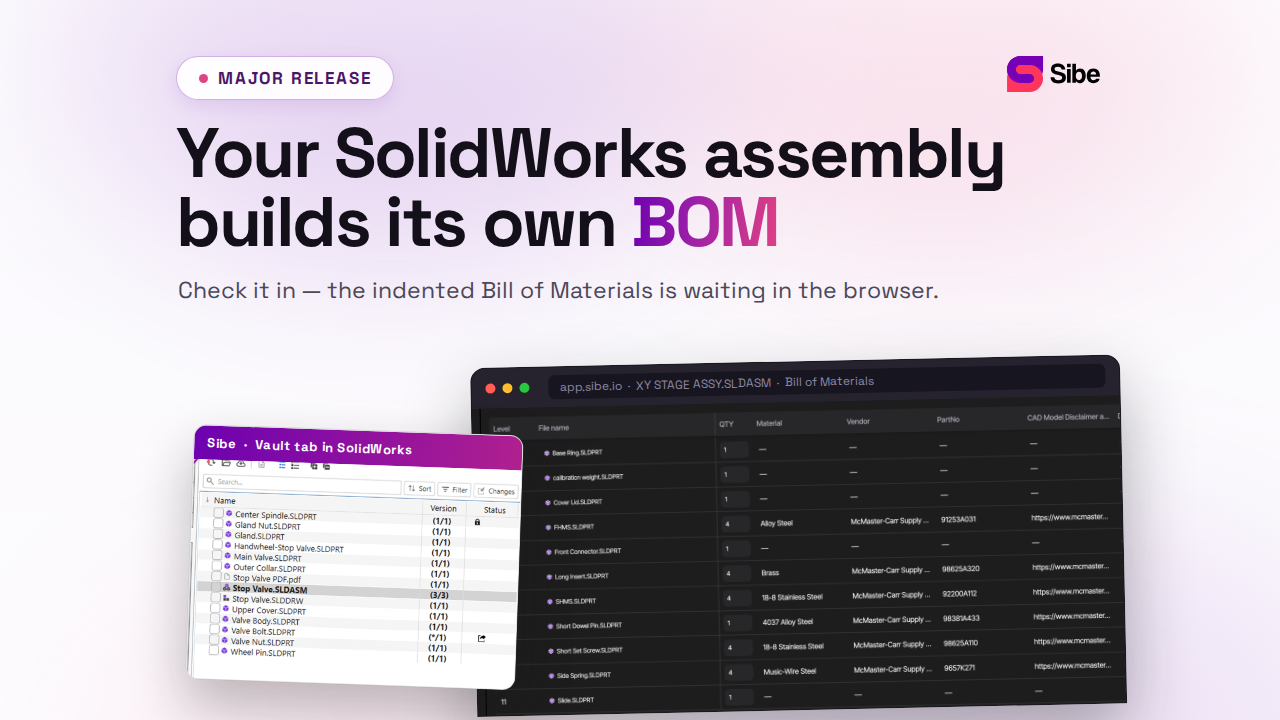
Sibe runs as a native SolidWorks add-in. Engineers check files in and out directly in SolidWorks, and Sibe tracks every version as the work goes. Assembly references resolve automatically, including parts shared across projects, and a local cache folder mirrors your folder structure so the paths on disk stay familiar.
Reviews happen in the browser. You send a client, a machinist, or a project manager a free public share link or a QR code, and they open the model, spin it, measure it, and leave a comment. No Sibe account, no viewer to install.
- Automatic version and revision control on every check-in
- Revision and approval workflow with a full audit trail
- Design reviews in any browser, comments pinned to the model
- CAD file management that keeps assembly references intact
- Transparent per-seat pricing, live in under 20 minutes
No servers, no VPNs, no admin hassles.
Book a free 20-minute demo or try Sibe free for 14 days — no credit card.
Book a free Demo with Ken to see Sibe in action


Ken Maren
Chief Solutions Architect
SolidWorks Expert with 30+ Years Experience
Redirecting...
Demo bookings need a company email address. To use a personal one, choose Try Sibe for free below.
.png)