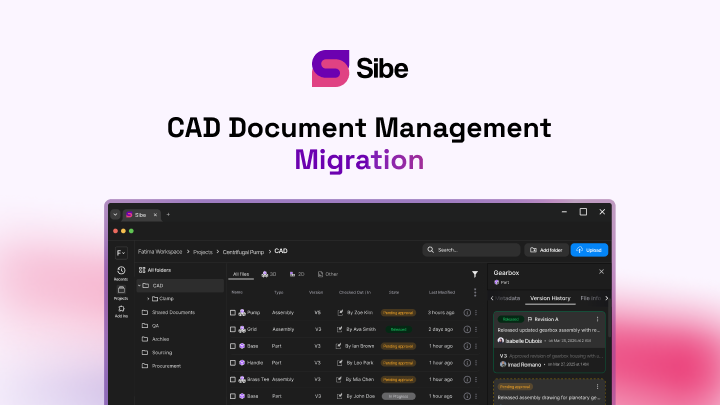
Connect SolidWorks to the Cloud in Under 20 Minutes

Install the add-in, point it at the folder your CAD already lives in, and check in your first SolidWorks file — the whole setup runs in under 20 minutes.
You can have your team's SolidWorks files under version control — every revision tracked, every assembly reference resolved, a share link ready for a client — in under 20 minutes. The whole setup runs from your own machine. Install an add-in, point it at the folder your CAD already lives in, and check in your first file.
This guide walks the setup end to end, with a realistic timing on each stage, plus what your team can do the moment the last step finishes.
Sibe is a collaboration-first CAD Document Management platform with a native add-in for SOLIDWORKS® 3D CAD. Engineers check files in and out directly in SolidWorks, Sibe tracks every version as they go, and assembly references resolve automatically, including parts shared across projects. Every step below happens in a browser and in SolidWorks. None of it happens on a server you have to own.
Before you start: what you actually need
Five things, and you almost certainly have all of them already:
- SolidWorks 2018 or newer on each machine that will check files in and out
- A work email address for every engineer who needs a seat
- The folder your CAD files live in today — local disk, network drive, or a synced cloud folder
- Admin rights on the machine, the same as any other add-in install
- A quiet twenty minutes when nobody is mid-edit on the assembly you import first
That last one matters more than it reads. The import goes cleanly when the files on disk are the files everyone agrees are current. If two engineers are still passing an assembly back and forth over email, settle that first, then import.
The setup, step by step
1. Create the workspace — 2 minutes
Sign up at app.sibe.io/register, name the workspace after your company, and start the 14-day trial. No credit card. You land in the Web Dashboard, which is where seats, folders and permissions live for the rest of the workspace's life.
Name the workspace something your whole team recognizes. It shows up in share links and in the add-in, and renaming it later is a small nuisance you can skip by getting it right now.
2. Install the SolidWorks add-in — 5 minutes
Download the installer directly from app.sibe.io/static/add-ins/solidworks/latest.exe and run it. It installs the way every other SolidWorks add-in installs: next, next, finish. Restart SolidWorks and a Sibe tab appears on the ribbon.
Sign in on that tab with the same work email you used for the workspace. From here on, check-in, check-out, Get Latest and version history all sit one click away from the model you have open. Nobody has to alt-tab into a browser to do version control.
3. Point Sibe at your folders and import — 6 minutes
The add-in's guided first-time setup walks you through importing your initial CAD assemblies. Pick the top-level folder, confirm what comes in, and let it run.
Two things happen during that import. First, Sibe mirrors your folder structure in a local cache folder on the machine — similar to the structure your engineers already navigate, so the paths still read the way they expect. Second, assembly references are read and resolved as files land, so an assembly that pointed at fifty parts still points at those fifty parts, including the ones shared with another project.
Import the project your team is actively working on first. A dormant archive folder teaches you nothing about whether the setup works.
4. Invite your team — 3 minutes
Invite engineers by work email from the Dashboard and allocate a seat to each one. They get a link, they set a password, they install the add-in on their own machine using the same installer link. Seat allocation is managed in the Dashboard, so you can move a seat between people later without a support ticket.
Non-CAD teammates do not need a seat at all. Reviewers, clients and shop-floor staff open a share link in a browser — more on that below.
5. Check in your first file — 2 minutes
Open the assembly in SolidWorks, hit check-in on the Sibe tab, and type a short change note. That is version 1. Make an edit, check in again, and you have version 2 with your name, a timestamp and your note against it.
Do this once with the whole team watching. It is the single step that turns the setup from an IT task into something engineers understand in one pass.
Running total: 18 minutes. Your files are versioned, your references resolve, and your team is in.
What your team gets on day one
Automatic version control on every file
Most SolidWorks teams version by filename — v1, v2, final, final_approved, final_approved_REAL. It works right up until the day it does not. Sibe writes a new version every time a file is checked in, with the author, a timestamp and the change note attached. You stop renaming files and you stop guessing which copy is current. If you want the detail, the version control feature page covers how history and restore work.
Check-out locks, so nobody overwrites anybody
On a shared drive, two engineers opening the same assembly means one of them loses an afternoon. Sibe locks a file while it is checked out. Everyone else sees who has it and what they said they were doing. No file conflicts, no accidental overwrites, no reconstructing lost edits at five o'clock.
A design link for people who have no CAD
Instead of exporting a STEP file and emailing a ZIP, generate a free public share link or a QR code for any file or assembly. The person you send it to opens the model in any browser — no Sibe account, no viewer to install, no license. They rotate it, measure it, and comment against a specific version, so you always know exactly which revision they signed off. Secure design sharing covers the permission controls.
References that hold together
SolidWorks assemblies point at parts and drawings by path. Move or rename one file in a shared folder and the references break. Sibe tracks those relationships, so moving a component or renaming a part does not send the assembly hunting. The Missing References page gives you one place to resolve anything that does come loose. See CAD file management for how the structure is handled.
Reviews that end in a decision
Comments land on a version, not on an email thread. A reviewer marks up the model in the browser, the engineer sees the note against the exact revision, and the approval is recorded. Design reviews and the revision and approval workflow pages go through the states in detail.
Cloud setup and traditional on-premise setup, side by side
Product data management has been an on-premise category for most of its history: a database server, a vault host, a VPN for anyone outside the building, and an administrator who owns all of it. Cloud CAD document management moves that infrastructure off your floor. The practical differences show up in the first month.
| What you are deciding | Traditional on-premise setup | Cloud CAD document management |
|---|---|---|
| Setup time | Weeks, scheduled around IT availability | Under 20 minutes, done by the engineering team |
| Infrastructure | Database and vault servers you buy, host and patch | None on your side |
| Working from home or a second site | VPN connection into the office network | Same experience wherever the engineer sits |
| Showing a design to a client | Export, package, email, hope they can open it | Free public share link or QR code, opens in any browser |
| Who runs it day to day | A named administrator, in-house or contracted | A workspace owner, part-time, from the Dashboard |
Neither shape is wrong. A hundred-engineer site with a dedicated IT function and strict on-premise data rules has good reasons for the left-hand column. A team of two to thirty engineers with no full-time admin usually does not.
The first week after setup
Getting live in under 20 minutes is the easy part. The habits are what make it stick, and they take about a week:
- Agree that the workspace is the only place current files live — retire the old "WIP" folder on day one
- Write real change notes on check-in; "updated bracket" beats "changes" every time
- Use Get Latest before starting work, so nobody edits yesterday's geometry
- Send the next client review as a share link instead of a ZIP, once, and let the team see the difference
- Set up your Favorite Folders in the add-in so the projects you touch daily are one click deep
If something in the import looks wrong — a reference that will not resolve, a folder that came in flat — fix it in the first week while the file count is still small.
Frequently asked questions
Where Sibe fits
Sibe is a collaboration-first CAD Document Management platform built for SolidWorks teams. Engineers check files in and out directly in SolidWorks. Sibe tracks every version, resolves assembly references automatically, locks a file while somebody has it out, and keeps a full audit trail of who changed what and when. Reviewers and clients open a free public share link or scan a QR code and see the model in any browser, with no account and nothing to install.
Not every team is at the point of standing up a PDM. If you are two to thirty engineers, have no full-time admin, and would rather not buy a server this quarter, cloud CAD document management covers version control, revision workflows and design reviews without any of that.
Setup is the twenty minutes above, and it is the same twenty minutes whether your team sits in one building or four countries. No servers, no VPNs, no admin hassles.
Book a free 20-minute demo and we will run the setup live on your files, or try Sibe free for 14 days — no credit card.
Book a free Demo with Ken to see Sibe in action


Ken Maren
Chief Solutions Architect
SolidWorks Expert with 30+ Years Experience
Redirecting...
Demo bookings need a company email address. To use a personal one, choose Try Sibe for free below.
.png)