How to Link a Revision Number to a SolidWorks Property

Set the revision once and let every title block and BOM column read it, whether you track revisions by hand or let a vault drive them.
You can type a revision once, in one place, and have it appear in the title block of every drawing that references the model — and in the BOM column beside it. SOLIDWORKS® 3D CAD does this with a custom property and a linked note: the drawing reads the value from the property instead of keeping its own copy, so bumping the revision is a single edit rather than a hunt through sheets.
This guide covers the manual setup end to end, then the automated route teams use once a vault drives the revision, and the errors that come up most often on both.
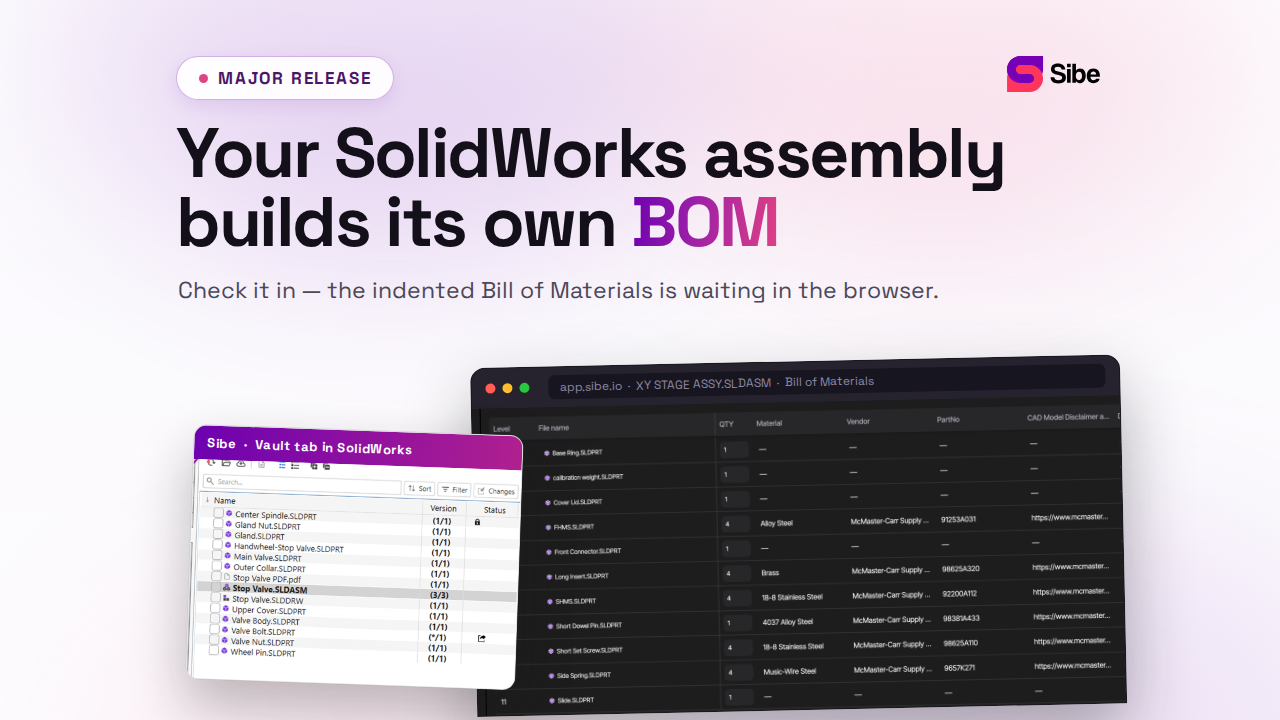
Sibe is a collaboration-first CAD Document Management platform with a native SolidWorks add-in. Files check in and out directly in SolidWorks and Sibe tracks every version and revision as you go, so the value in the title block and the history behind it stay in step.
Section 1: Link a revision number to a property by hand
SolidWorks stores a revision inside a custom property, and you pull that value into the title block, notes, and BOMs. Set it up once in your templates and every new file inherits it.
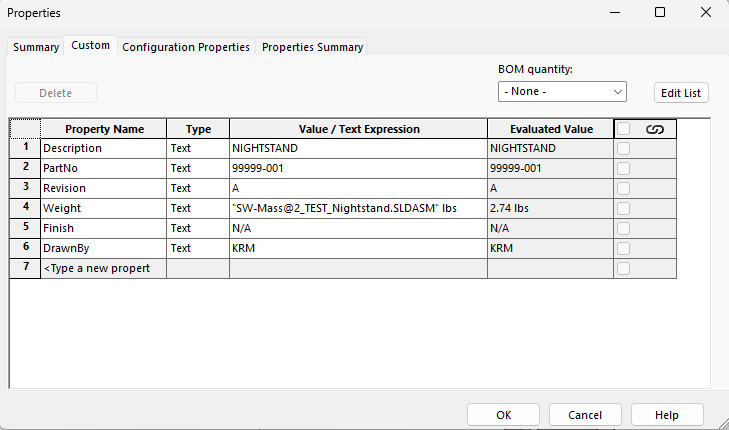
Step 1: Create a revision custom property
- Open your part, assembly, or drawing.
- Go to File → Properties.
- On the Custom tab, add a property:
- Property Name: Revision
- Type: Text
- Value: A, B, 1, 2, and so on
- Click OK.
Spell the property name the same way in every file. "Revision", "REV" and "Rev No" are three different properties as far as SolidWorks is concerned, and a title block linked to one shows blank on a file that uses another.
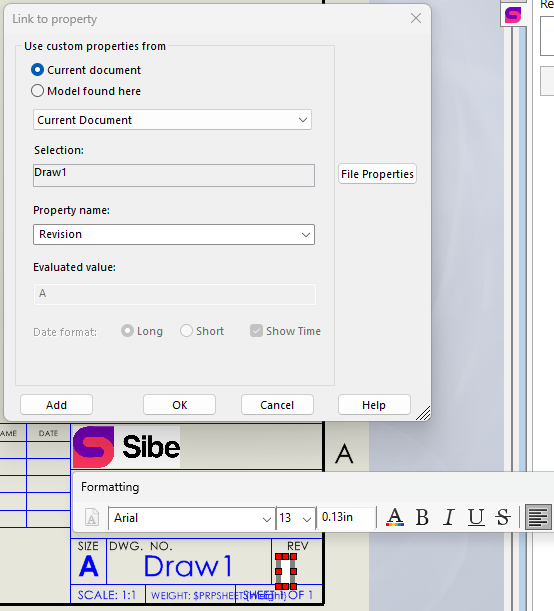
Step 2: Link the property to your drawing title block
- Open your drawing.
- Right-click the sheet and choose Edit Sheet Format.
- Insert a note: Insert → Note.
- With the note selected, click Link to Property.
- Choose the source:
- This Document → Revision if the property lives on the drawing, or
- Model Found Here → Revision if the property lives on the part or assembly
- Finish and select Exit Sheet Format.
Put the note in the sheet format rather than on the sheet. A note added to the sheet applies to that one sheet; a note in the format carries to every new sheet created from it.
Step 3: Update the revision
Change File → Properties → Revision and the drawing picks the new value up. Press Ctrl+Q to force a full rebuild if the note still shows the old one.
Decide as a team whether the property lives on the model or on the drawing, and stick to it. Splitting the two is how a part ends up at Rev C while its drawing still prints Rev B.
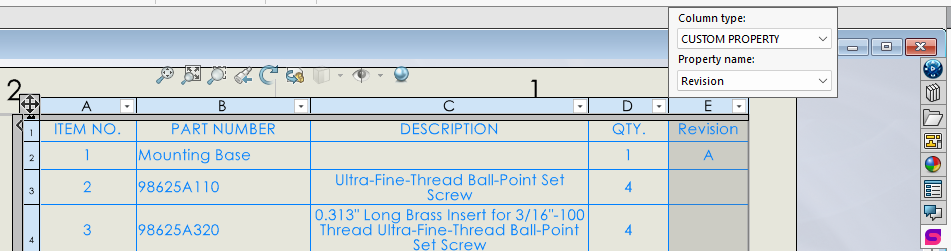
Step 4: Add the revision to a BOM
If the parts list needs to carry revisions:
- Edit the BOM.
- Add a column.
- Set the column type to Custom Property and pick Revision.
The column reads the same property, so a revision bump on the model flows through to the parts list without a second edit.
Step 5: Roll it into your templates
Add the Revision property to your part, assembly and drawing templates, and add the linked note to your sheet formats. New files then arrive with the property already present and the title block already wired, which removes the most common cause of blank revision fields: a file created before the standard existed.
Section 2: Automating the revision with SOLIDWORKS® PDM
Where a vault manages revisions, the vault value can be written into the file's Revision property automatically, so the property is a copy of the vault state rather than something an engineer maintains by hand. The setup runs entirely in the administration tool.
Step 1: Create a revision variable in PDM Administration
- Open PDM Administration.
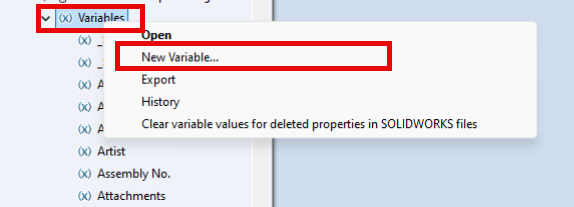
- Go to Variables, right-click, and choose New Variable.
- Name it REVISION.
Step 2: Connect the variable to the revision scheme
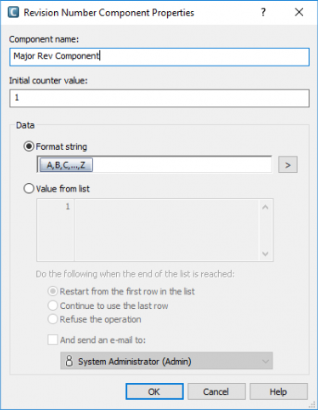
- Open your revision scheme in the administration tool.
- Assign the REVISION variable to the scheme so the vault writes to it during revision transitions.
Step 3: Map the vault variable to a document property
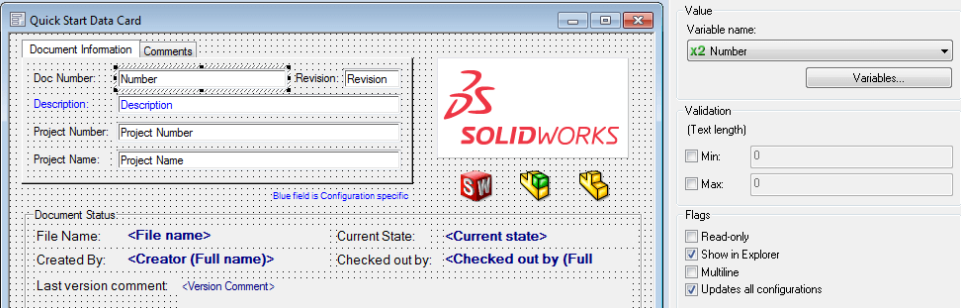
- Open File Types in the administration tool.
- Select the file types you care about: sldprt, sldasm, slddrw.
- Create the mapping:
- Variable: REVISION
- File property: Revision
- Enable write-to-file on check-in where the option is available.
Map the same variable across all three file types. Mapping parts but not drawings is what produces a model at Rev D whose sheet still reads Rev C.
Step 4: Let the workflow transition write the value
When a workflow transition changes the revision, the vault writes the value into the file property. No manual editing is involved from that point on.
Step 5: Display the revision in the drawing
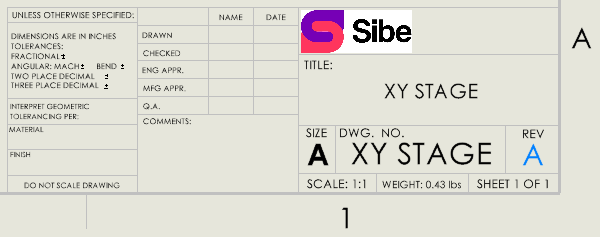
The drawing side is identical to the manual method:
- Insert a note
- Click Link to Property
- Choose Model, or This Document
- Select the Revision property
Because the vault writes the revision into the property, the title block stays in step with the vault state. (Dassault Systèmes SOLIDWORKS PDM administration documentation, accessed 31 August 2026.)
When the linked note shows the wrong value
The note prints blank
The property name in the file does not match the name in the link, or the file was made from an older template that never had the property. Open File → Properties and check the exact spelling.
The note shows the old revision
The drawing has not rebuilt. Press Ctrl+Q. If it persists, the note is linked to This Document while the value you edited lives on the model — relink it to Model Found Here.
Different sheets show different revisions
Sheets created before the sheet format was updated keep the old format. Reapply the sheet format to each sheet, or recreate the sheets from the current template.
The revision is right in CAD and wrong on the released PDF
The PDF was generated before the last rebuild. Regenerate the export after the revision bump, and keep exports tied to a release step rather than produced ad hoc.
Where Sibe fits
Sibe is a collaboration-first CAD Document Management platform with a native SolidWorks add-in. Engineers check parts, assemblies and drawings in and out directly in SolidWorks, and Sibe applies version and revision control automatically — every check-in is a tracked version, with the person, the timestamp and the comment attached, so the audit trail builds itself as the work happens.
That takes the pressure off the property. The title block still reads whatever revision you set, but the answer to "which one is current, and what changed" no longer depends on someone remembering to type it. You open the version history on any file, view an older version directly in SolidWorks, and restore it if you need to.
- Automatic version history on every part, assembly and drawing
- Revision and approval workflow with released files locked
- Full audit trail of who changed what, and when
- Assembly references resolved automatically, including parts shared across projects
- Free public share links and QR codes for reviewers with no CAD seat
- Live in under 20 minutes
See cloud version control for SolidWorks and the revision and approval workflow for the detail.
No servers, no VPNs, no admin hassles.
Book a free 20-minute demo or try Sibe free for 14 days — no credit card.
Book a free Demo with Ken to see Sibe in action


Ken Maren
Chief Solutions Architect
SolidWorks Expert with 30+ Years Experience
Redirecting...
Demo bookings need a company email address. To use a personal one, choose Try Sibe for free below.
.png)