QR Codes for SolidWorks Files: What Works and What Doesn't

SolidWorks has no built-in QR code generator, but a code on a drawing can still open a manual, a work instruction, or the live 3D model — here is how teams set it up.
You can put a QR code on a SolidWorks drawing and let anyone with a phone pull up the right information — an assembly manual, a work instruction, or the live 3D model itself. SolidWorks does not generate the code for you, but the workflow takes minutes once you know it, and it saves the shop floor from typing file paths or digging through folders.
Sibe is a collaboration-first cloud CAD Document Management platform with a native SolidWorks add-in. Every share link you create in Sibe comes with a QR code — print it on a drawing or a traveler, and anyone who scans it opens the live 3D model in a browser, no account, no viewer install. More on that below.
Does SolidWorks generate QR codes?
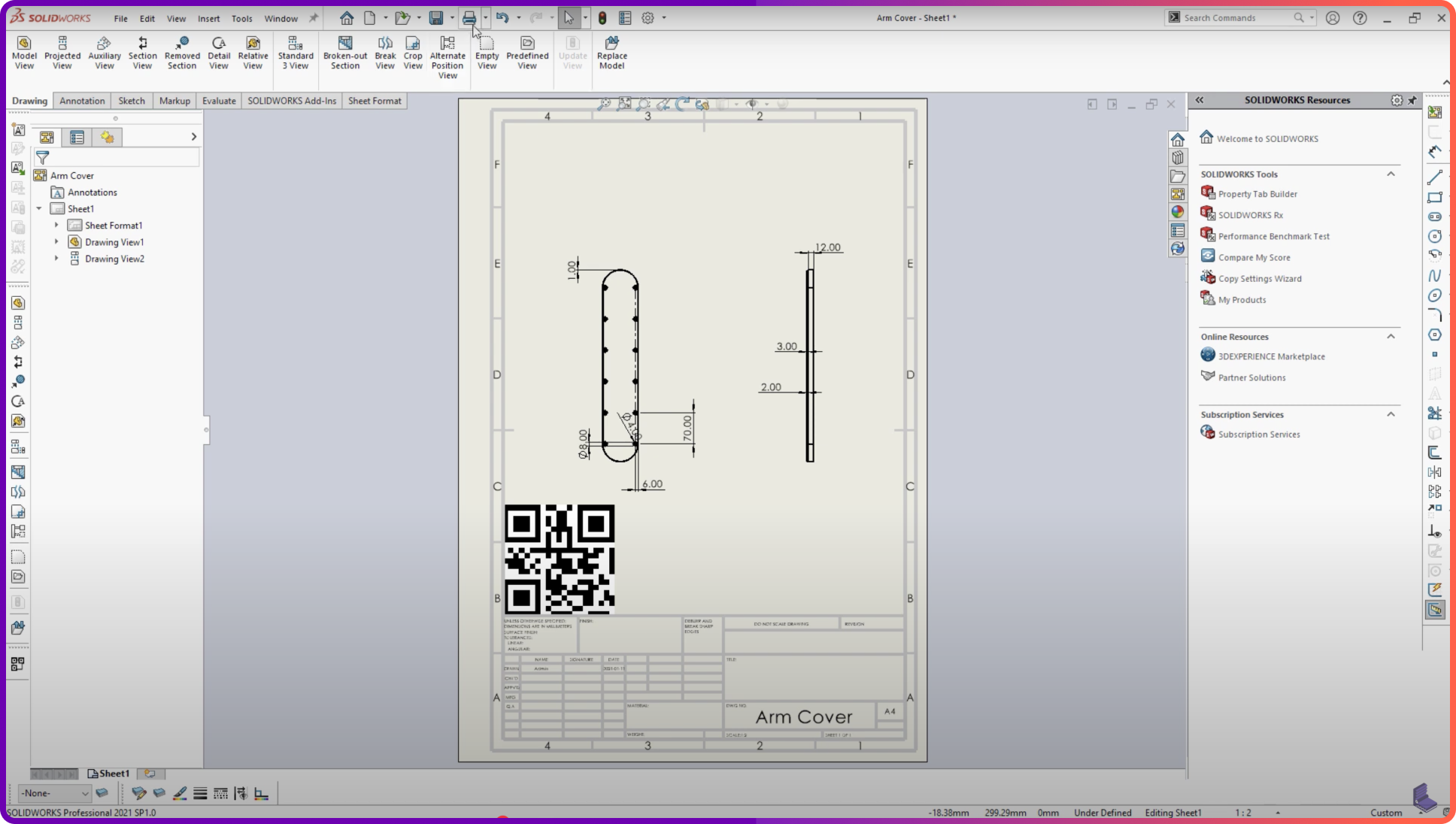
No. SOLIDWORKS® 3D CAD has no native QR code generator — no sketch tool, no annotation type, no property-linked code. Title blocks can pull text from custom properties, but nothing renders that text as a scannable code. Every QR code you see on a drawing was made outside the CAD package and placed as an image. That keeps the workflow simple: generate, export, insert, place.
How to add a QR code to a SolidWorks drawing
- Generate the code outside SolidWorks. Use an online generator such as QRCode Monkey or QRStuff. Point the code at the destination you want people to reach — a manual, a video, a document folder, or a shared model link.
- Export the right format. PNG or JPEG works for placing the code as a picture. Export SVG or DXF when you want vector line work — for example, to etch or engrave the code onto the part itself.
- Insert the code. On a drawing, use Insert > Picture to place the image on the sheet. On a model, apply the image as a decal if the code needs to sit on the 3D geometry — and check how the decal renders in drawing views before relying on it there.
- Place it where it gets scanned. Most teams put the code on the 2D drawing sheet, near the title block, so anyone reading a printed or exported drawing can scan it without hunting for it.
Make the code survive printing
A QR code that scans fine on screen can fail on paper. A few habits keep it reliable:
- Print the code at 20 mm (about 0.8 in) per side or larger
- Keep a white quiet zone around the code — at least four modules on every side
- Use dark modules on a light background; low contrast kills scans
- Shorten the URL first — shorter links produce coarser, easier-to-scan codes
- Test-scan a printout at final scale before the drawing goes out
Pick a URL that will not move
A printed code is permanent; the URL behind it had better be too. If the code points at a file path on a server or a document that gets renamed, every drawing already on the floor goes dead the day the link changes. Point codes at destinations you control and that stay stable — a fixed documentation page, a redirect you manage, or a share link that stays with the design. Reprinting fifty travelers because a folder got reorganized is the failure mode to design against.
The limitation: no links into markups
A QR code points at an external destination. It cannot target an individual markup, comment, or annotation inside a SolidWorks file — scanning a code will never jump a reader to one revision note in the model tree. If reviewers need to see specific comments in context, that conversation has to live somewhere a browser can reach.
What teams put behind a QR code
Even as a static image, a code on a drawing does real work:
- Assembly manuals and instruction videos for the shop floor
- Work instructions and inspection steps on a traveler
- Part, fixture, and tooling IDs that resolve to a storage location
- Maintenance and calibration records on equipment drawings
- Supplier documentation attached to a purchased component
- Test procedures and acceptance criteria at QA stations
A QR code that opens the live 3D model
Linking a PDF manual is useful. Linking the model itself is better: the person holding the print sees the design in 3D, rotates it, measures it, and reads the discussion around it.
Every Sibe share link comes with a QR code. Print it on a drawing or a traveler, and anyone who scans it opens the live 3D model in any browser — no Sibe account, no viewer install. A fabricator checks a dimension against the model instead of calling the design office. An assembler sees the live design, not a screenshot from three revisions ago.
Reviews work the same way: reviewers comment directly on the model in the browser, and the thread stays with the file — see design reviews. You decide which files get a link and who sees what; the details are on secure design sharing.
Where Sibe fits
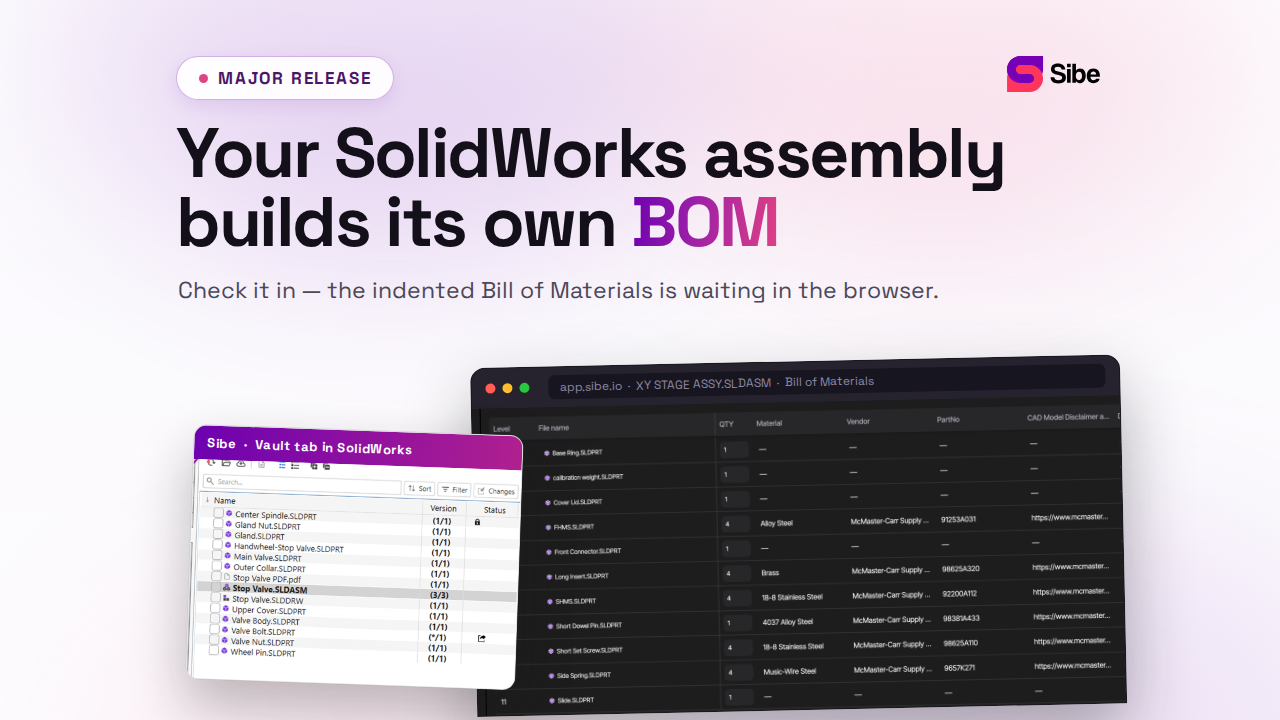
Sibe gives SolidWorks teams the piece the QR workflow depends on: a live, always-reachable version of every design. Engineers check files in and out directly in SolidWorks, Sibe tracks every version automatically, and each shared file carries a link and a QR code that opens in any browser. Print the code once — it keeps opening the live model as the design evolves. No servers, no VPNs, no admin hassles.
Book a free 20-minute demo or try Sibe free for 14 days — no credit card.
Book a free Demo with Ken to see Sibe in action


Ken Maren
Chief Solutions Architect
SolidWorks Expert with 30+ Years Experience
Redirecting...
Demo bookings need a company email address. To use a personal one, choose Try Sibe for free below.
.png)