SOLIDWORKS PDM Copy Tree: How to Copy Assemblies Safely

How Copy Tree duplicates an assembly with every reference intact, the settings that decide whether the copy comes out clean, and the habits that prevent rework later.
You can duplicate a complete assembly — parts, subassemblies, drawings, linked documents — and have every reference in the copy point at the right file. Copy Tree, the project-duplication tool in SOLIDWORKS® PDM, exists for exactly this job. A clean result comes down to a handful of settings and habits; this guide covers how the tool works, where copies go wrong, and the practices that keep a duplicated project usable from the first open.
What Copy Tree does
Copy Tree copies a file together with everything it references — components, drawings, and linked documents — from within the vault, and updates the references in the copies so the new project stands on its own. A plain Windows copy duplicates files but leaves their references pointing at the originals; Copy Tree rewrites them as part of the operation. It also connects to the vault's serial-number and renaming schemes, so copies pick up structured names as they are created. (Dassault Systèmes SOLIDWORKS PDM documentation, accessed 31 August 2026.)
Copy Tree and Pack and Go
SolidWorks itself ships Pack and Go, which also copies an assembly with its references. The two tools overlap but serve different situations:
| Aspect | Pack and Go (SolidWorks) | Copy Tree (SolidWorks PDM) |
|---|---|---|
| Where it runs | File menu in SolidWorks | Vault view in Windows Explorer |
| Works on | Files on disk | Files tracked in the vault |
| Version selection | The files as saved on disk | Latest version, or the version the parent references |
| Renaming options | Prefix or suffix | Prefix, suffix, serial numbers, find-and-replace |
| Output | Folder or ZIP | Vault folder or compressed archive |
Why references decide everything
An assembly is a web of references: parts feed subassemblies, subassemblies feed the top level, and drawings point at all of them. Copy a project without handling that web and three failures show up:
- Broken references — copied parts no longer load in the parent assembly
- File-name conflicts — two files claim the same name in the vault
- Accidental overwrites — a copy replaces an existing version
Copy Tree exists to prevent all three. The settings below decide whether it does.
How to run Copy Tree, step by step
Step 1: Open the tool
- Open the vault view and browse to the assembly or file you want to copy.
- Right-click it and choose Tools > Copy Tree.
Step 2: Choose the copy settings
- Version to use — Latest copies the newest version of every file; Referenced copies the exact versions the top-level file points at
- Copy type — copy as files into a destination folder, or as a compressed archive for transfer
- Include drawings — brings the 2D drawings along with the models
- Include simulation results — keeps associated analysis files with the copy
- Regenerate serial numbers — assigns fresh serial numbers to the copies from the vault's numbering scheme
Step 3: Transform the file names
- Add a prefix or suffix — distinguishes copies from originals at a glance, for example "RevB_" or "_Prototype"
- Rename with serial numbers — puts the copies onto the vault's automated naming scheme
- Replace text in file names — swaps project codes or version tags across the whole set in one pass
Step 4: Pick the destination and copy
Browse to the destination folder, confirm in the preview that every path and name resolves the way you expect, then click Copy. The preview is the last cheap chance to catch a duplicate name or a file that does not belong in the set.
Where Copy Tree earns its place
- New product revisions — copy the project, keep the original intact, and develop the next version in parallel
- Variants of a standard design — duplicate the core structure, then modify the copy for each configuration a customer needs
- Reusing an assembly in a new project — carry a proven mechanism into new work without disturbing the source files
- Multi-site work — replicate a file set for teams working against a different vault location
Where copies go wrong — and the fixes
Slow copies on large assemblies
Copying an assembly with hundreds of components means the server scans and rewrites every reference, and the operation leans on the network the whole way. Slow copies usually trace back to server load or link quality.
- Run large copies during off-peak hours
- Keep the files being copied in the local cache before you start
- Use a wired 1 Gbps or faster connection; avoid high-latency links for multi-gigabyte copies
- For multi-site vaults, let replication settle before copying across locations
Broken or missing references
A copy that opens with missing components almost always traces back to settings, not luck. Without Preserve Relative Paths, parts land unlinked, drawings lose their models, and the bill of materials stops matching the structure — each one fixable, but each one by hand.
- Turn on Preserve Relative Paths so the copied set keeps the same subfolder structure below the destination
- Check dependencies first — Where Used and a reference search show every linked file before you copy
- Watch the linked non-CAD files: spreadsheet BOMs, analysis results, and library components ride along only if they are included
- Open the copied assembly immediately after the copy and confirm every reference resolves
File-name conflicts and serial numbers
Naming is where copies most often turn into cleanup work. The failure modes are predictable: a missing prefix leaves a copy with the same name as an existing file, ad-hoc renames break the trail between a copy and its source design, and a misconfigured serial-number scheme hands out duplicates or fires out of sequence.
The fixes are organizational as much as technical:
- Set naming rules once, company-wide — standard prefixes, project numbers in file names, lengths within limits
- Search the vault for the target names before copying, so conflicts surface before check-in
- Let vault variables and serial-number schemes generate names instead of typing them by hand
- Review the renaming column in the preview before executing
- Validate after the copy — search for the new names, open the assembly, confirm the serial numbers
Copies that stay checked out
A fresh copy is not automatically checked in. If the person who ran the copy moves on to other work, teammates find the new files locked under that user's name.
- Enable the check-in-on-copy option so copies land checked in
- Make an immediate check-in part of the copying routine
- Have an administrator review long-checked-out files and release the ones nobody is editing
Overwrites and permissions
- Unique prefixes or serial numbers keep a copy from replacing an existing file of the same name
- Version history in the vault brings back anything that does get overwritten
- Confirm the operator has rights on the destination folder before the copy starts, not at check-in time
- Review folder permissions with an administrator when a copy refuses to check in
Network, storage, and firewalls
- Check free space on the destination before copying a large set — a copy that fails partway leaves cleanup work
- Set alerts on vault storage so large copies stop failing near the end
- Give the database and archive servers room to work: memory for the database, SSDs for the archive store
- Open the vault's required ports between sites — 3030 for the archive server, 1433 and 1434 for the SQL database (Dassault Systèmes SOLIDWORKS PDM installation documentation, accessed 31 August 2026)
Version history and the audit trail
A copy starts life as version 1. The history of the source files stays with the source — which surprises teams that expect the whole trail to travel with the copy, and matters in industries where every design iteration must stay traceable.
- Label the source files before copying so the origin is findable later
- Record the source project in the check-in comments on the copies
- Use Where Used to trace copies back to shared components
- Archive released versions separately where regulations require the full trail
A pre-copy checklist
- Dependencies reviewed — Where Used and a reference search run on the top-level file.
- Naming decided — prefix, suffix, or serial scheme chosen and checked against the vault for conflicts.
- Preview inspected — every file, name, and path reads right before you click Copy.
- Destination ready — permissions confirmed, storage confirmed.
- Backup taken — a ZIP of the source set, in case anything needs comparing later.
- After the copy — check in the new files, open the assembly, validate names and references.
Where Sibe fits
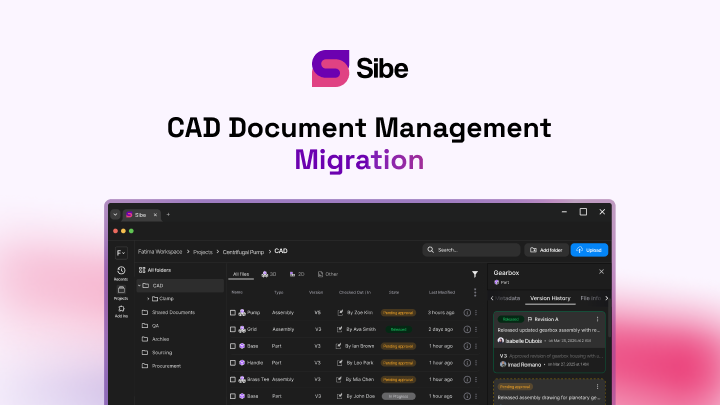
Sibe is a collaboration-first cloud CAD Document Management platform with a native SolidWorks add-in. When your team needs a variant of an existing design, Sibe's Copy Design duplicates the whole assembly with references resolved automatically — and the associated drawings come along in the copy. Version control runs underneath: engineers check files in and out directly in SolidWorks, every version of every file keeps its history, and the audit trail records who changed what (cloud version control, CAD file management).
Not every team is at the point of standing up a PDM. If you are two to thirty engineers, have no full-time admin, and would rather not buy a server this quarter, cloud CAD document management covers version control, revision workflows, and design reviews without any of that — live in under 20 minutes. No servers, no VPNs, no admin hassles.
Book a free 20-minute demo or try Sibe free for 14 days — no credit card.
Book a free Demo with Ken to see Sibe in action


Ken Maren
Chief Solutions Architect
SolidWorks Expert with 30+ Years Experience
Redirecting...
Demo bookings need a company email address. To use a personal one, choose Try Sibe for free below.
.png)