SolidWorks PDM Migration: How to Prepare Your Vault Move

A preparation checklist for moving a SOLIDWORKS PDM vault: a defined scope, a full audit, a tested backup, a staging dry run, and a downtime window that holds.
You can move a SOLIDWORKS® PDM vault — to new hardware, a newer version, or a different tier — without losing a reference or a revision. The outcome is decided almost entirely before the move starts: preparation, not the migration weekend itself, is where vault moves succeed or fail.
Whether you are moving the server, upgrading from PDM Standard to PDM Professional, or retiring a vault on a product that has reached end of life, such as Workgroup PDM (Dassault Systèmes product documentation, accessed 31 August 2026), the move touches every engineering workflow you run. Skipped preparation shows up later as broken file references, workflow errors, or lost data. This guide covers how to prepare properly.
Here is a look at what a vault data migration involves in practice:
Clarify your migration objective
Start by defining exactly what kind of migration you are planning, because each type carries different technical implications. Are you moving the PDM server to new hardware? Upgrading from PDM Standard to PDM Professional? Or moving data out of a discontinued product?
The objective determines everything that follows — licensing requirements, compatibility checks, and user training. Without a clear scope, the project drifts into unplanned work, scope creep, and unexpected downtime.
Audit your current setup
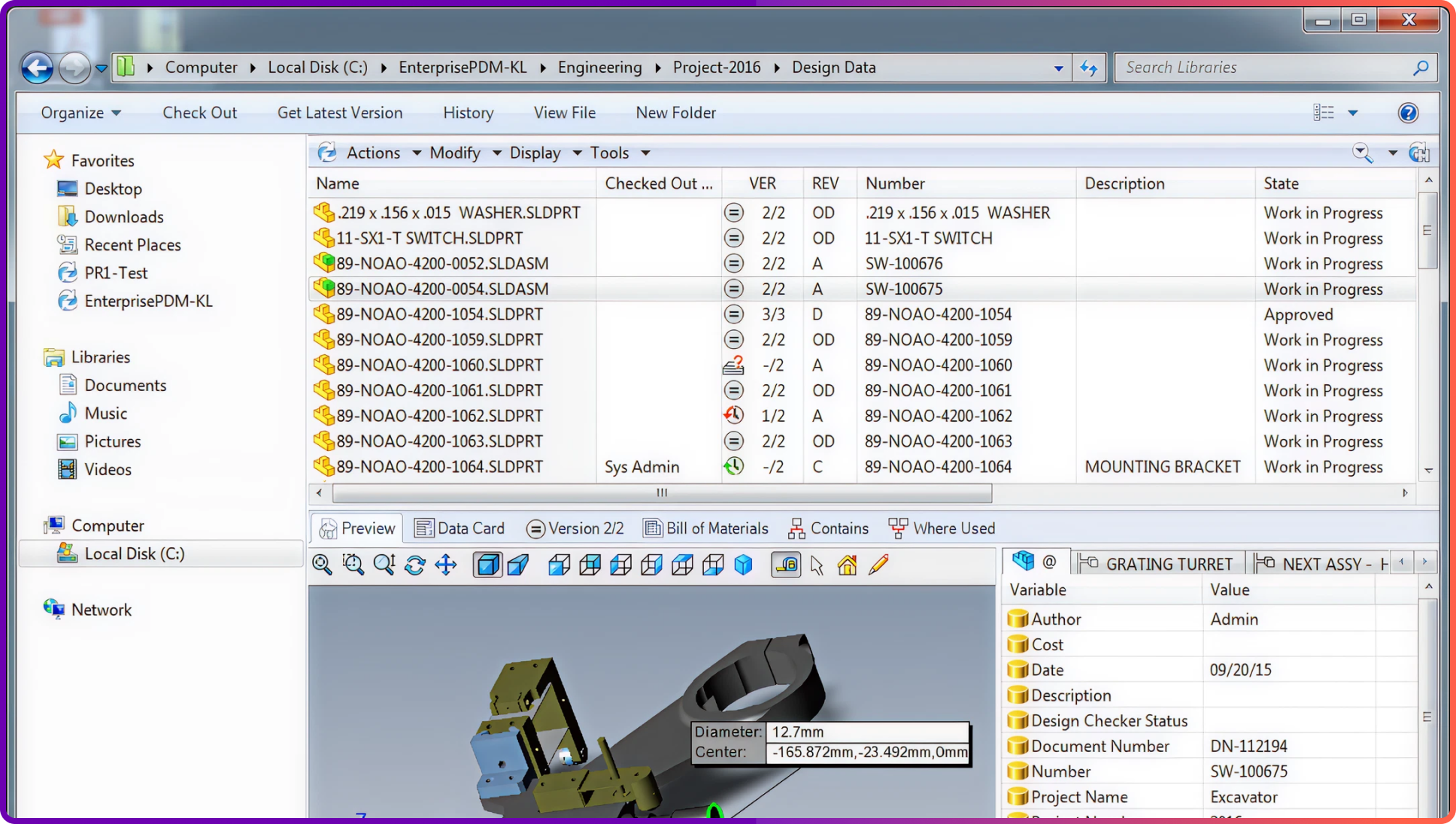
Before making any changes, take a full inventory of the existing environment — not just hardware specs and software versions, but how the vault is actually used. Document the SQL Server version, Windows Server OS, PDM version, and client operating systems. (Vault components per Dassault Systèmes product documentation, accessed 31 August 2026.)
Go further and audit the vault itself. Record the number of users and groups, current workflows and states, permissions, data cards, variables, and any custom add-ins or integrations in use. If the company replicates across multiple sites, document that too.
This audit becomes your reference point after the move, the checklist you verify against to confirm everything was reconfigured and preserved.
Add-ins deserve special attention. Many companies rely on custom or third-party add-ins for automated tasks, ERP integration, or specialized workflows, and these often depend on specific API versions and database structures. Before migrating, list every add-in in use, verify compatibility with the target version, and coordinate with vendors on updates or reinstallation steps. Overlooked add-ins are a common cause of failed migrations and post-go-live surprises.
Clean up before you migrate
A migration is the ideal moment to reduce complexity. Most organizations drag along outdated workflows, users, and folder structures that no longer serve a purpose — clutter that adds migration time, risk, and points of failure.
At minimum: delete inactive users and groups, archive or remove old projects, and simplify workflows where possible. Eliminate duplicate variables and redundant data card fields. Find and fix broken file references and unresolved check-outs. The less unnecessary data you carry forward, the faster and cleaner the move.
Back up everything and validate the backup
Never begin a migration without a full backup — and a backup only counts once it has been restored somewhere. Back up both the SQL database and the archive server files, and export license information and configuration settings.
Then restore the backup in a test environment. Validate that the system comes online, files open, workflows function, and nothing is missing. An untested backup is a false sense of security, not a safety net.
Create a staging environment and test the migration
Never test a migration on the production system. Set up a staging environment and simulate the exact steps — the version upgrade, server move, or vault restore — in a safe, isolated context.
After the test run, verify the critical functions. Can users check files in and out? Do workflows behave correctly? Are metadata fields preserved? Does search return what it did before? The dry run surfaces problems while they are still cheap to fix.
Coordinate across teams
A migration needs engineering and IT working in step. CAD users must know when the vault will be unavailable and check in all files ahead of time. IT must provision the new servers with sufficient storage, CPU, and RAM, and have network and security configurations in place.
Hold a migration planning meeting: assign responsibilities, confirm the timeline, and review dependencies — especially where external vendors or consultants are involved.
Schedule downtime strategically
Even a flawless migration needs exclusive access to the vault. Define a clear downtime window and communicate it early and often.
For most teams the best window is a weekend or holiday, when engineering activity is lowest. Build in a buffer for surprises, state clearly when the vault is expected back online, and have a rollback plan ready in case something goes wrong.
Final pre-migration checklist
Before the move begins, confirm all of the following:
- Scope and objectives defined
- Full system audit and documentation complete
- Vault cleanup performed
- Backups made and restore-tested
- Staging dry run completed successfully
- Servers, licenses, and clients prepared; users notified
Missing even one of these steps raises the odds of failure or extended downtime.
Conclusion
A vault migration is not a routine upgrade. It touches core engineering operations, data integrity, and team productivity — and the deciding factor is not the weekend execution but the methodical preparation before it: a defined scope, a verified audit, a tested backup, a staging dry run, and a downtime window everyone knows about.
Where Sibe fits
This guide assumes you already run a vault. Plenty of teams reading it do not — they work from a shared drive and are weighing whether the servers, database, and administration described above are an investment they can carry.
Not every team is at the point of standing up a PDM. If you are two to thirty engineers, have no full-time admin, and would rather not buy a server this quarter, cloud CAD document management covers version control, revision workflows and design reviews without any of that.
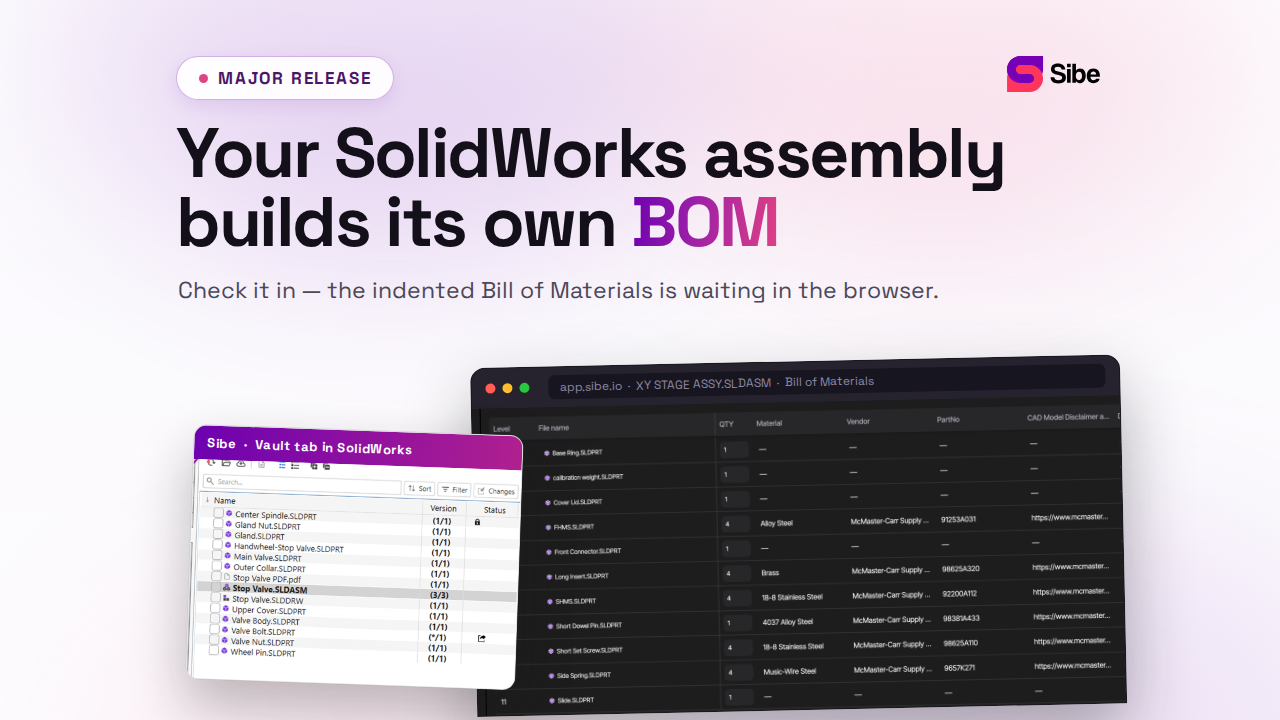
Sibe gives that team a native SolidWorks add-in: engineers check files in and out directly in SolidWorks, Sibe tracks every version, and assembly references resolve automatically. Reviewers open designs from a free public share link in any browser — no account, no viewer install — and setup is live in under 20 minutes.
- Automatic version and revision control on every check-in
- Revision and approval workflow with a full audit trail
- Design reviews in the browser for clients and non-CAD teammates
- Transparent pricing, no server or database to budget for
No servers, no VPNs, no admin hassles.
Book a free 20-minute demo or try Sibe free for 14 days — no credit card.
Book a free Demo with Ken to see Sibe in action


Ken Maren
Chief Solutions Architect
SolidWorks Expert with 30+ Years Experience
Redirecting...
Demo bookings need a company email address. To use a personal one, choose Try Sibe for free below.
.png)