How to Create a Card List from SQL in SOLIDWORKS PDM

Build a data card dropdown that pulls its values straight from a SQL table, so every engineer picks from the same live list.
You can fill data card dropdowns straight from a SQL table instead of typing values by hand. Set up one SQL-driven card list in SOLIDWORKS® PDM and every engineer picks project names, supplier codes, or material types from the same live list — no typos, no out-of-date entries. This guide walks through the setup, the sync behavior, and the mistakes admins commonly hit. Product behavior described here follows Dassault Systèmes' public SOLIDWORKS PDM documentation, accessed 31 August 2026.
Sibe is a cloud CAD document management platform with a native SolidWorks add-in. It reads the custom properties already on your parts, assemblies, and drawings, and search in the add-in and dashboard filters by custom property, file type, workflow state, and check-out status.
What Is a Card List in PDM?
A card list in SolidWorks PDM is a dropdown menu that appears on a data card. It lets users select predefined values rather than typing them in manually. These lists can be:
- Static: manually created and maintained inside the admin tool
- Dynamic (SQL-based): automatically populated from an external or internal database
In this guide, we focus on dynamic lists — specifically, how to pull values directly from a SQL table. SQL-driven lists are a PDM Professional capability; PDM Standard supports static lists only (Dassault Systèmes product documentation, accessed 31 August 2026).
Why Use a SQL-Based Card List?
Instead of maintaining dropdown values manually, you can link the list to a live database. Benefits include:
- Automatic updates when records change (e.g. new suppliers or part categories)
- Data consistency, avoiding typos and non-standard naming
- Centralized control, especially useful in distributed engineering teams
For example, if you maintain a Projects table in SQL, linking it to your card means all engineers see the same project names in real time.
Prerequisites
Before you begin:
- You need admin rights in the PDM Administration tool
- You must have read access to the SQL Server that contains the source data
- Basic knowledge of SQL queries helps
- Back up your vault and test in a staging environment before deploying to production
Step-by-Step: Creating a SQL-Based Card List
1. Identify or Create the SQL Table
Make sure your SQL Server contains the table or view with the data you want to display. For example:
CREATE TABLE Projects (
ProjectID INT PRIMARY KEY,
ProjectName NVARCHAR(100)
)
Add a few sample rows to test with.
2. Write and Test Your SQL Query
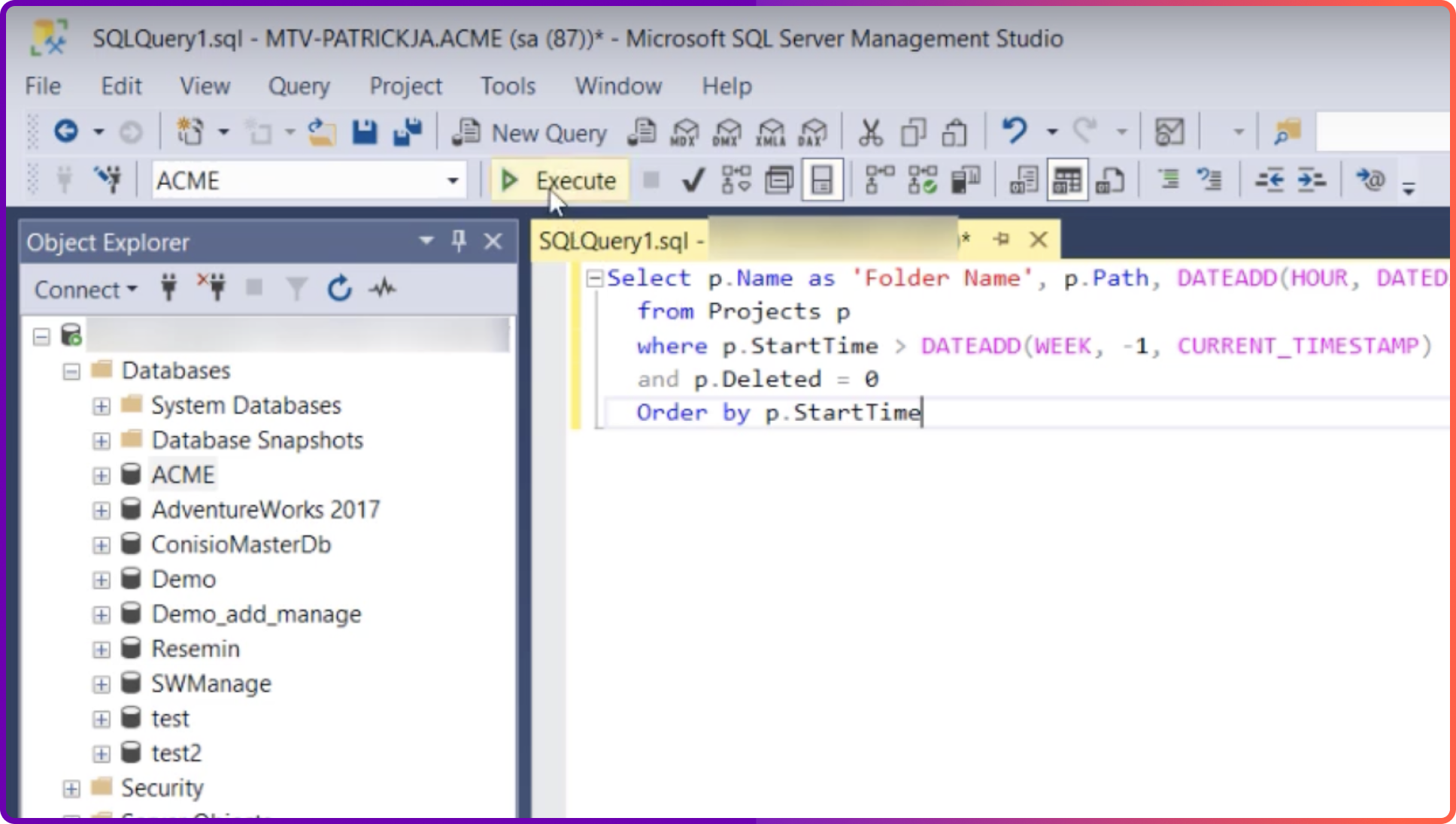
Use SQL Server Management Studio to test a simple SELECT query. For example:
SELECT ProjectName FROM Projects ORDER BY ProjectName
Return one column, sorted — that is what the dropdown displays. Confirm the query runs fast on the full table before you wire it up.
3. Create the List in the Administration Tool
Open the PDM Administration tool, expand your vault, and add a new list under the lists node for data cards. Choose the option to source the list from a SQL database, point it at your server and database with a login that has SELECT rights on the table, and paste the query you tested. Save the list under a name your card admins will recognize.
4. Attach the List to a Data Card
Open the data card in the Card Editor, select the dropdown (combo box) control, and set its items to the list you created. Save the card, then open a file's data card in the vault to confirm the values appear.
5. Confirm Updates Flow Through
Add a row to the source table, then reopen a data card — the new value appears once the list refreshes from the database. That is the point of the exercise: maintain values in one table, and every card follows without a card redeploy.
Troubleshooting Common Issues
| Issue | Likely Cause | Fix |
|---|---|---|
| List shows blank | SQL query returns no rows | Run it in SSMS and verify |
| “Connection failed” | Bad credentials or firewall | Check ODBC settings and SQL login |
| List is slow | Too many records | Use TOP 100, filter, or index |
| Permissions error | SQL user lacks SELECT rights | Grant SELECT on the table |
Backing up your PDM SQL Database
Bonus: Filtering Lists Dynamically
You can use PDM variables in your query for advanced behavior. For example, filter by logged-in user:
SELECT ProjectName FROM Projects WHERE AssignedTo = '%username%'
Or filter by file type or folder path using %filename%, %path%, etc.
Conclusion
Dynamic card lists are a simple upgrade that removes a whole class of data card errors. By connecting them to your SQL database, you cut typos, enforce consistent naming, and retire the manual list maintenance.
Now that you know how to create SQL-based lists, apply the technique to any card field that relies on centralized or frequently changing data — and keep the source tables as the single place those values get edited.
Where Sibe fits
Not every team is at the point of standing up a PDM — or of administering SQL Server so that dropdowns stay clean. If you are two to thirty engineers, have no full-time admin, and would rather not buy a server this quarter, cloud CAD document management covers version control, revision workflows and design reviews without any of that.
Most teams at that size need three things from their file data: properties on every file, search that reads them, and version history when something goes wrong. Sibe gives you all three. It reads the custom properties already on your SolidWorks files, search and filters in the add-in and dashboard work by custom property, file type, workflow state, and check-out status, and every check-in is tracked automatically — with file management that mirrors your folder structure in a local cache folder.
No servers, no VPNs, no admin hassles. Book a free 20-minute demo or try Sibe free for 14 days — no credit card.
Book a free Demo with Ken to see Sibe in action


Ken Maren
Chief Solutions Architect
SolidWorks Expert with 30+ Years Experience
Redirecting...
Demo bookings need a company email address. To use a personal one, choose Try Sibe for free below.
.png)