Share a Rhino Model for Review with a SolidWorks Team

You can hand a Rhino concept to the engineers who will take it into production without losing detail on the way, and get comments back on the model rather than on a screenshot. Here is how to prepare it, export it, and put it somewhere reviewers can actually use.
Where the handoff usually breaks
Concept work happens in Rhino. Production work happens in SolidWorks. The gap between the two is where detail goes missing.
The usual route is an export, an email and a screenshot marked up in a slide. The engineer rebuilds from a mesh that lost its units. The reviewer describes a surface in words. Two weeks later somebody finds out the wrong revision went forward.
Most of that is fixed before the file leaves Rhino.
1. Prepare the model
- Clean up: delete unused geometry, collapse duplicate layers, consolidate similar objects
- Check scale and units: this is the one that costs a week when it is wrong
- Optimize textures and materials, and check they are linked rather than embedded at full size
- Simplify heavy geometry where it does not change intent; ReduceMesh does most of the work
- Name layers the way a stranger would read them, not the way you built them
Run Rhino's diagnostic check before you export. Anything it flags will be worse on the other side.
2. Export it
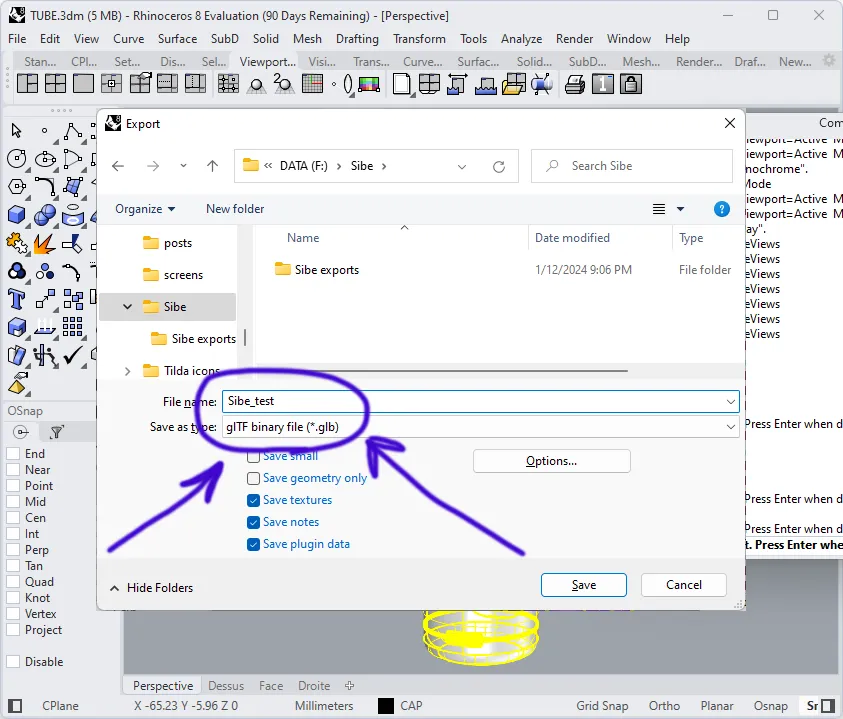
- Pick the format for the job: STEP for engineering handoff, STL for print, OBJ or glTF for review, 3DM to stay native
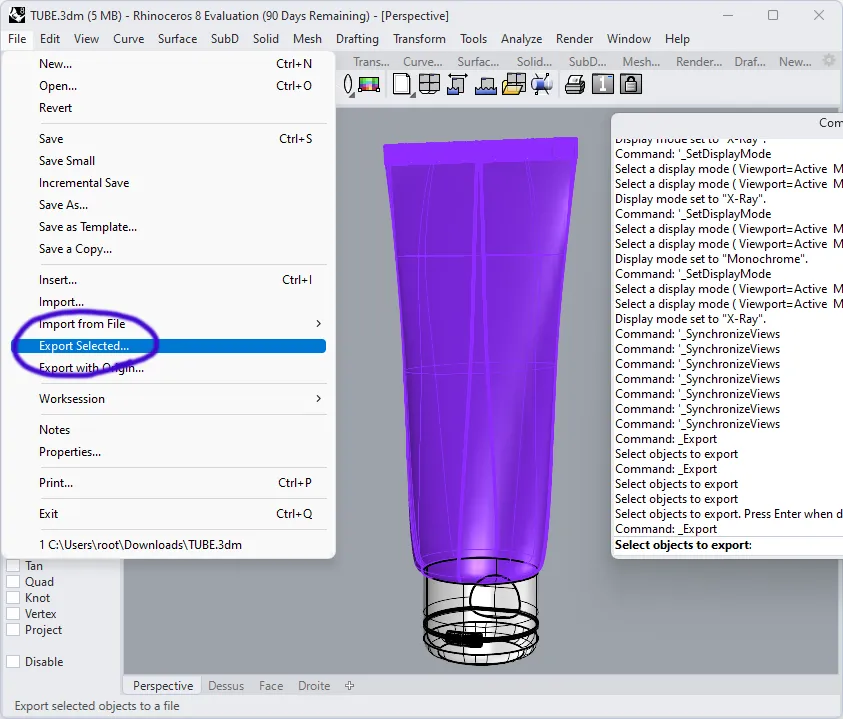
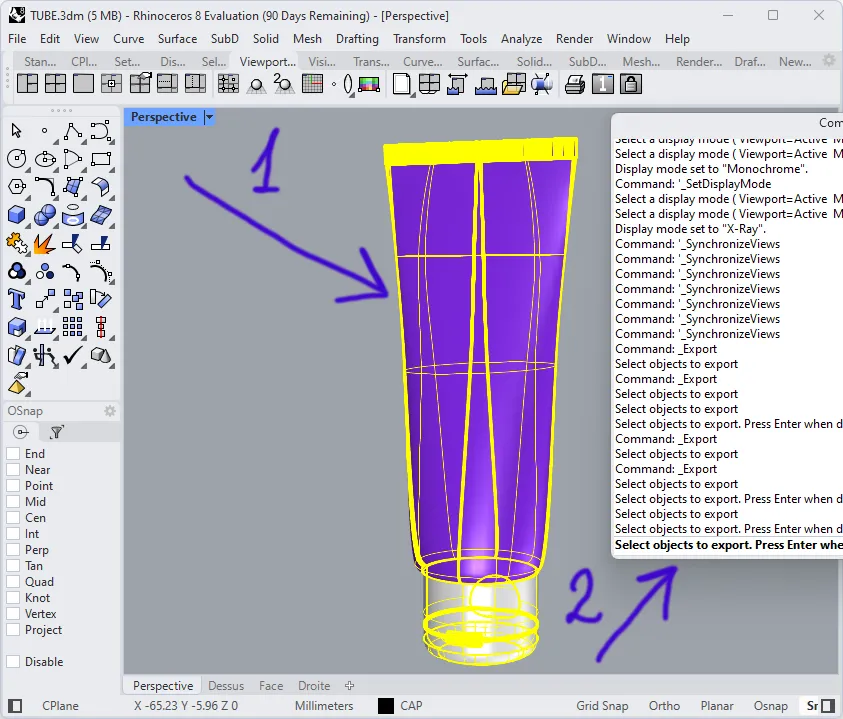
- Select the objects you want to send, then File > Export Selected
- Set the mesh options for the quality you need: review copies do not need print density
3. Put it where reviewers can use it
Email attachments and a shared folder both work, and both have the same weakness: the reviewer needs software, and their feedback comes back as prose.
A share link avoids both. The model opens in any browser on any machine, and the reviewer rotates it, measures it, and pins a comment to the face they mean. No CAD license, no account to create.
Comments pinned to geometry are the difference between "the fillet looks wrong" and a note attached to the fillet in question.
Handing it to the SolidWorks side
Once the concept is agreed, the work moves to the engineers who will detail it, and the file management problem changes shape. Now it is revisions, assembly references, and knowing which version is current across a team.
That is where Sibe picks it up. Engineers check files in and out directly in SolidWorks, every version is tracked automatically, and assembly references resolve without repair. STEP and glTF both come in, so the Rhino concept stays available beside the production model.
Reviewers keep the same link they had at concept stage. Nothing about their side changes when the work moves into engineering.
Why this is worth the ten minutes
- One current version, wherever the model came from
- Feedback pinned to geometry, not written in an email
- Reviewers and clients included without a CAD seat
- Concept and production files in the same place, with history behind both
No servers, no VPNs, no admin hassles.
Book a free 20-minute demo and bring the model you are handing over next.
Book a free Demo with Ken to see Sibe in action


Ken Maren
Chief Solutions Architect
SolidWorks Expert with 30+ Years Experience
Redirecting...
Latest Articles